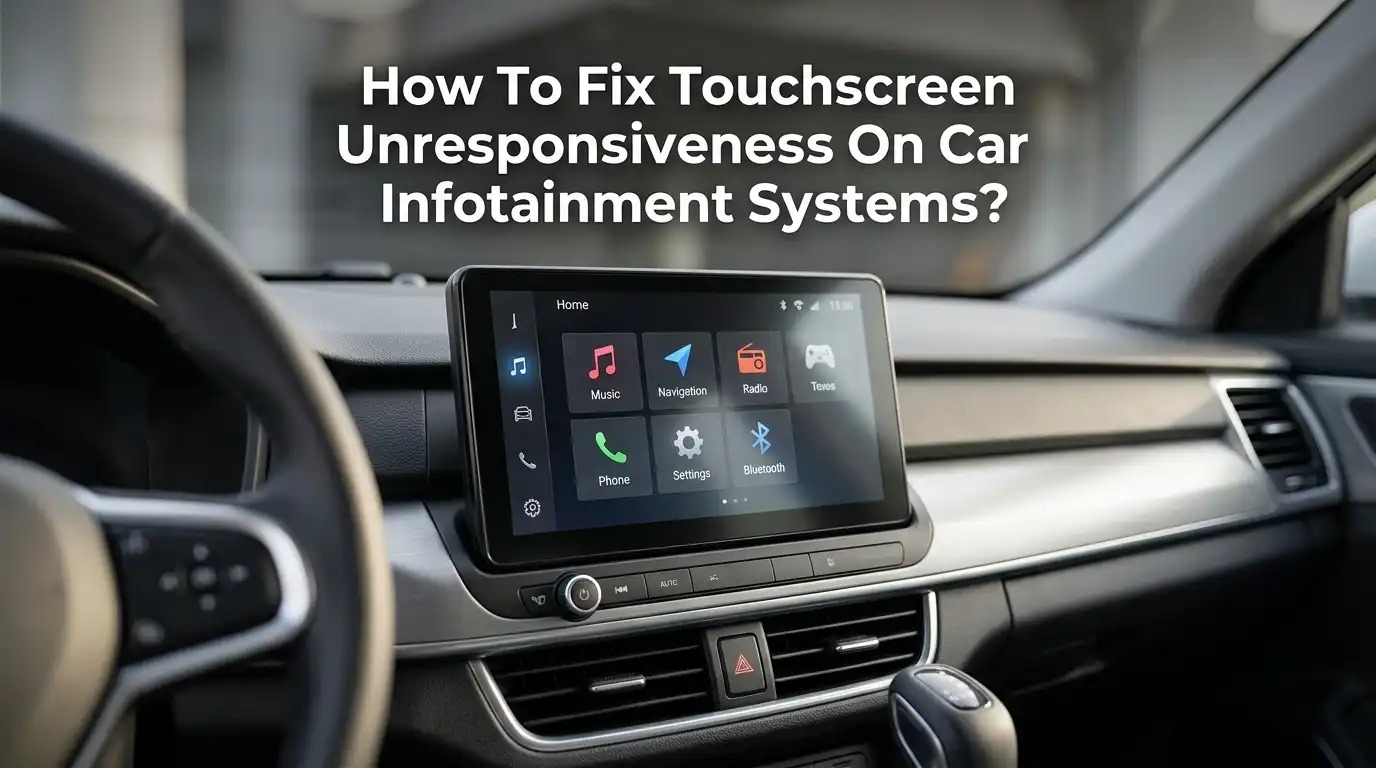
How To Fix Touchscreen Unresponsiveness On Car Infotainment Systems?
Your car’s infotainment screen freezes right when you need directions. The music app stops responding. Tapping the volume icon does nothing. This frustrating moment hits drivers more often than you might think.
Modern cars depend on touchscreens for navigation, calls, climate control, and entertainment. When the screen stops working, the whole driving experience suffers.
This guide walks you through every practical step to bring your infotainment system back to life. You will learn quick resets, deep fixes, and long term care tips that actually work.
Key Takeaways
- A soft reboot solves most problems. Press and hold the power button for ten to fifteen seconds. This single step fixes around 70 percent of touchscreen freezes caused by minor software glitches.
- Dirt and moisture are silent troublemakers. A clean microfiber cloth and a screen safe cleaner often restore touch sensitivity instantly. Avoid harsh chemicals like ammonia or alcohol heavy sprays.
- Software updates matter more than you think. Many automakers release firmware patches that fix lag, freezes, and ghost touches. Check your vehicle’s update page every few months.
- Screen protectors and phone interference cause real issues. A thick protector can block touch signals. A faulty USB cable or phone can lock up the system through CarPlay or Android Auto.
- A factory reset is the last DIY step. It clears every setting and pairing. Back up your data first. After that, professional repair is your next option.
- Heat and cold damage screens over time. Park in shade when possible. Extreme temperatures shorten the life of capacitive touch panels.
Understand Why Your Touchscreen Stops Responding
Touchscreens fail for a few common reasons. Software bugs sit at the top of the list. The infotainment system runs on a small computer, and like any computer, it crashes sometimes. Memory overload from too many background apps slows the screen down.
Hardware problems come next. The digitizer layer behind the glass can wear out. Loose internal cables disconnect from vibration over time. Heat damages the touch sensors slowly.
External issues also play a role. Dirty screens, gloves, wet fingers, and even thick screen protectors block the electrical signal between your finger and the sensor. Knowing the cause helps you pick the right fix faster.
Start With A Simple Power Cycle
A power cycle is the easiest fix and works surprisingly often. Turn the car completely off. Open the driver door so the system shuts down fully. Wait two to three minutes. Then start the car again.
This step clears short term memory and stops frozen processes. Many drivers skip this because it feels too basic, but it remains the first recommended step by most carmakers including Ford, Toyota, Honda, and Hyundai.
Pros: Costs nothing, takes minutes, and does not erase any settings or data. Safe to repeat anytime.
Cons: Only fixes temporary glitches. If the touchscreen problem comes back within a day, the cause is deeper and needs a stronger solution.
Perform A Soft Reset Using The Power Button
A soft reset goes one step deeper than a power cycle. Press and hold the power or volume knob for ten to fifteen seconds. The screen will go black, then the manufacturer logo appears. Release the button when you see the logo.
This forces the infotainment software to reboot without touching saved data. Your Bluetooth pairings, radio presets, and navigation favorites stay intact. Most vehicles support this method, though the exact button varies by brand.
For some Hyundai and Kia models, hold the power button until the screen reboots. For GM vehicles, holding the end call button on the steering wheel for fifteen seconds works.
Pros: Quick, simple, and keeps all your settings. Fixes most freeze ups and lag issues.
Cons: Will not help if the problem is hardware related or caused by a corrupted update file.
Clean The Touchscreen Properly
Fingerprints, dust, and grease build up faster than you think. A dirty screen can mimic a broken screen. The touch sensor reads oils and grime as false inputs, which causes lag or ghost touches.
Use a soft microfiber cloth and slightly dampen it with distilled water. Wipe in gentle circles. For tougher spots, use a cleaner made for electronic screens. Never spray liquid directly onto the display.
Avoid paper towels, tissues, and harsh chemicals. They leave scratches and damage the oleophobic coating. Glass cleaners with ammonia can permanently fog the screen.
Pros: Free or low cost, takes under five minutes, and improves touch accuracy noticeably.
Cons: Only helps if dirt was the issue. Will not fix software bugs or internal hardware failures.
Remove Screen Protectors Or Aftermarket Films
Many drivers add screen protectors to prevent scratches. But cheap or thick protectors interfere with capacitive touch signals. The screen reads your touch through a weakened layer, which causes delayed or missed taps.
Peel off the protector carefully using a plastic card. Clean any glue residue with a microfiber cloth and a small amount of isopropyl alcohol on the glass only, not the bezel. Test the screen without the protector for a few days.
If touch response improves, replace the old protector with a thinner, automotive grade one. Look for protectors rated for capacitive touchscreens specifically.
Pros: Confirms whether the protector caused the issue. Easy and reversible.
Cons: Removing the protector exposes the screen to scratches until you install a new one.
Check For Software And Firmware Updates
Automakers release updates regularly to fix touchscreen bugs. Outdated firmware is one of the top reasons screens act up. Many systems update over WiFi now, but some still need a USB drive or dealer visit.
Open your settings menu and look for system update, software version, or about. If an update is available, install it while the car is parked safely. Connect to home WiFi if your car supports it.
For brands like Tesla, BMW, and newer Ford models, updates download automatically. For older systems, visit the manufacturer website, download the file to a USB stick, and plug it in.
Pros: Fixes known bugs, adds new features, and improves stability long term.
Cons: Updates take twenty to sixty minutes. A failed update can brick the system, so never interrupt the process or shut off the car.
Recalibrate The Touchscreen
If the screen responds but registers taps in the wrong spot, calibration is the answer. Capacitive sensors drift over time, especially after temperature swings or rough roads.
On Android based head units, place five fingers on the screen for five seconds. A calibration page appears with plus signs. Tap each one carefully. On factory systems, find the touch calibration option under display or general settings.
Some vehicles do not offer manual calibration. In that case, a factory reset can trigger an automatic recalibration during the next startup.
Pros: Fixes inaccurate touch points without replacing any hardware. Restores precision quickly.
Cons: Not every infotainment system supports user calibration. Some require dealer software tools.
Disconnect The Car Battery For A Hard Reset
When soft resets fail, a battery disconnect often works. This method forces every electronic system to fully reboot, including the infotainment unit. Use this when the screen stays frozen even after multiple reset attempts.
Park on a flat surface and turn off the car. Open the hood and disconnect the negative battery terminal using a wrench. Wait fifteen minutes. Reconnect the terminal and start the car.
Be aware that this may reset your clock, radio presets, and stored window positions. Some cars also need a security code to restart the radio. Check your owner manual first.
Pros: Clears stubborn glitches that survive normal resets. Works on nearly every vehicle.
Cons: Erases minor settings. Some luxury cars require dealer reactivation of certain features.
Inspect USB Ports And Connected Devices
A faulty USB cable or buggy phone can lock up your entire screen. CarPlay and Android Auto sometimes crash and take the touchscreen with them. The system tries to communicate with the phone and freezes when it cannot.
Unplug all USB devices. Restart the car and see if the screen responds. If yes, your phone or cable was the culprit. Try a different high quality USB cable and a different phone to confirm.
Check the USB port for bent pins, dust, or debris. Use compressed air to clean it gently. Damaged ports can also send bad signals to the head unit.
Pros: Identifies external causes quickly. Replacing a cable is cheap.
Cons: If multiple devices fail, you may need to update the phone OS or reinstall the CarPlay app.
Perform A Factory Reset
A factory reset is the strongest DIY option. It wipes every setting, pairing, and saved profile. Use this when nothing else works and you are ready to set up the system from scratch.
Go to settings, then general or system, and select factory reset or restore defaults. Confirm the action and wait for the system to reboot. The process usually takes five to ten minutes.
Before doing this, write down your radio presets, Bluetooth pairings, and home address. You will need to enter them again. Some systems also clear navigation maps, so check if you need to reload them.
Pros: Fixes deep software corruption and brings the system back to like new condition.
Cons: Erases everything. Time consuming to set up again. Will not fix hardware damage.
Check For Loose Internal Cables Or Hardware Damage
If software fixes fail, the problem is likely physical. Vibration from daily driving can loosen the ribbon cable behind the screen. Water leaks, spilled drinks, and impact damage also harm the digitizer.
You can remove the dashboard trim and inspect the connections yourself if you are comfortable with car interiors. Watch a model specific video first. Reseat any loose cables and check for visible damage, burn marks, or corrosion.
If you see cracks, water stains, or burnt components, professional repair is the safer path. DIY work on modern infotainment units can void your warranty.
Pros: Identifies hardware issues without paying for diagnostics. Reseating cables sometimes fully solves the problem.
Cons: Risky for beginners. Wrong handling can damage airbags, wiring, or the screen itself.
Protect Your Screen From Heat And Cold
Extreme temperatures slowly kill touchscreens. Capacitive sensors expand and contract with heat, which causes drift and dead zones. Cold weather makes the glass less sensitive to gentle taps.
Park in shaded areas during summer. Use a windshield sunshade to lower cabin temperatures. In winter, let the car warm up for a minute before pressing the screen hard.
Avoid placing items on the screen, especially anything heavy or magnetic. Phone mounts that attach to the screen frame add stress over time. Keep air vents pointed away from the display.
Pros: Extends screen life by years. Costs little and prevents expensive replacements.
Cons: Requires daily habit changes. Will not fix damage that already happened.
When To Call A Professional Mechanic Or Dealer
Some problems are beyond home repair. Cracked screens, water damage, burnt boards, and persistent freezing after a factory reset all need professional help. Dealers have diagnostic tools that read error codes from the infotainment module.
Independent auto electronics shops often charge less than dealerships. They can replace the touch digitizer or the full screen assembly. Aftermarket repair shops also specialize in popular brands like Ford SYNC, GM MyLink, and Uconnect.
Get a written quote before approving repairs. Ask if used or refurbished parts are an option to save money. Check if your car is still under warranty since infotainment systems often have separate coverage.
Pros: Permanent fix for hardware failures. Professionals carry the right parts and tools.
Cons: Expensive, often costing between two hundred and one thousand dollars depending on the brand and damage.
Frequently Asked Questions
Why does my car touchscreen freeze randomly while driving?
Random freezes usually come from software bugs or memory overload. Background apps, Bluetooth connections, and navigation running together can overwhelm the system. A soft reset fixes most cases. If it keeps happening, update the firmware or check for a recall notice.
Can I replace a car infotainment touchscreen myself?
Yes, but only if you have experience with car electronics. Replacement screens cost less than dealer prices, and online guides exist for most models. Be careful around airbag wiring and battery connections. A wrong move can disable safety features.
How long do car touchscreens last?
Most factory touchscreens last seven to ten years with normal use. Heat, cold, and physical impact shorten this lifespan. Cleaning the screen often and parking in shade helps extend its life significantly.
Will a factory reset delete my saved navigation maps?
Sometimes yes. Some systems keep map data separate, while others wipe it during a reset. Check your owner manual before resetting. If maps get deleted, you can usually redownload them from the manufacturer site using a USB drive.
Why does my touchscreen work in some areas but not others?
Dead zones point to a failing digitizer or loose ribbon cable. Calibration sometimes helps, but partial dead zones usually mean physical damage. A professional can test the screen and replace the digitizer if needed.
Is it safe to drive with a broken infotainment screen?
You can drive, but you lose access to climate controls, navigation, and reverse camera in many cars. A broken reverse camera display may even be illegal in some regions. Get it fixed soon for safety and convenience.

Hi, I’m Jessamine Rowell, the founder and voice behind ResizeMake (https://resizemake.com/), a space where I share my love for technology with the world. I write detailed and honest reviews on the latest tech products, gadgets, electronic devices, and trending Amazon items to help readers make smarter buying decisions.