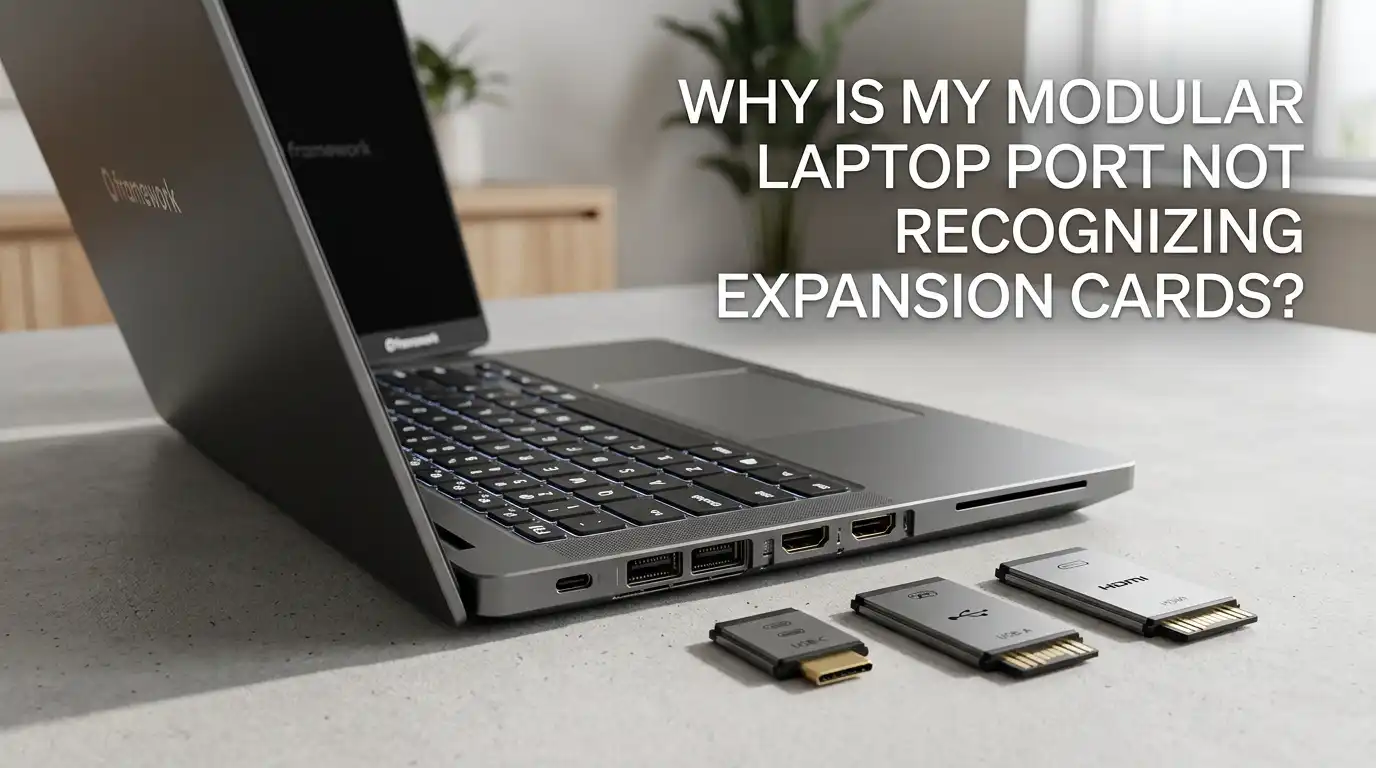
Why Is My Modular Laptop Port Not Recognizing Expansion Cards?
Modular laptops changed the way we think about portable computing. You can swap out ports, storage, and even graphics cards in seconds.
But what happens when you slide an expansion card into your laptop and nothing happens? No detection. No power. No response. It feels frustrating, especially when you depend on that port for work or play.
The good news is that most expansion card issues have simple fixes. You do not need to be a tech expert to solve them. This guide walks you through every common cause and gives you clear steps to fix it.
Key Takeaways
- Reseat the card first: Almost half of all expansion card problems come from a loose connection. Pop the card out, blow away any dust, and slide it back in until it clicks. This single step fixes most detection issues right away.
- Battery disconnect is powerful: A full power drain through the BIOS Disconnect Battery option clears stuck states in the USB controller. It works for slots that suddenly stop responding after a Windows update or sleep cycle.
- Drivers and firmware matter: An outdated BIOS or chipset driver can break port recognition. Always check the official support page for your laptop model and install the latest driver bundle before assuming hardware failure.
- Card swapping helps you diagnose: Move a working card into the dead slot. If it works, the original card is broken. If it does not, the slot or motherboard is the problem, not the card.
- Heat and bent pins cause real damage: A blown USB-C port often shows scorch marks or bent pins inside. These need professional repair or a motherboard swap, not software fixes.
- Linux and Windows behave differently: Each operating system handles power delivery and hotplug events its own way. Some issues only appear in one OS, which is a strong hint at a software cause.
Understand How Modular Laptop Ports Actually Work
Modular laptops use a small bay that holds an expansion card. Inside the bay sits a USB-C port wired directly to the motherboard.
When you slide a card in, the card connects to that internal USB-C port. The card then translates the signal into the port type you need, like USB-A, HDMI, DisplayPort, or microSD.
This means every expansion card depends on the internal USB-C connection. If that internal port fails, the slot will reject every card you try.
Knowing this helps you separate card problems from port problems. It also explains why a card that works in one slot may fail in another. The internal connection is the real heart of the system.
Check the Physical Connection First
The most common reason a port stops working is a loose card. Modular cards must click fully into place. Even a tiny gap of one millimeter can break the signal. Pull the card out completely. Look at the gold contacts on the back. They should be clean and shiny.
If you see dust, fingerprints, or smudges, wipe them gently with a microfiber cloth or a pencil eraser. Avoid liquids. Slide the card back in slowly and press firmly until you hear a soft click.
Try it in a different slot too. Pros of this method: it is free, fast, and fixes most cases. Cons: it will not help if the slot itself is damaged or if the card is internally broken.
Try the BIOS Battery Disconnect Trick
When all cards stop working at once, the USB controller may be stuck. The battery disconnect feature fully drains your laptop and resets the controller. Restart your laptop and press F2 to enter the BIOS. Look for an option called Disconnect Battery or Battery Cutoff. Select it and confirm.
The laptop will shut off completely. Unplug the charger and wait one full minute. Plug it back in and power up. Many users report that this single step brings dead slots back to life.
Pros: it costs nothing and takes under five minutes. Cons: it does not help with physical damage, and you may need to redo BIOS preferences after the reset.
Update Your BIOS to the Latest Version
A stale BIOS causes more port problems than people realize. Framework, for example, has released several BIOS updates that directly fix USB power delivery bugs. Older versions sometimes fail to negotiate power with certain cards, especially storage or display cards.
Visit your laptop maker’s official support page. Find the BIOS section for your exact model. Download only the version that matches your machine. Follow the on-screen steps carefully. Never interrupt a BIOS update.
Pros: it permanently fixes known firmware bugs and improves stability. Cons: a failed update can brick your laptop, so always plug in the charger and keep the system still during the process. Take a backup of your data first to be safe.
Reinstall or Update USB and Chipset Drivers
If you run Windows, driver corruption can stop expansion cards from showing up. Open Device Manager. Look under Universal Serial Bus Controllers. Right click each USB Root Hub and pick Uninstall device. Restart your laptop. Windows will reinstall fresh drivers automatically.
You should also install the official driver bundle from your laptop maker. Framework and other modular brands package their chipset, USB, and power drivers together. Always pick the bundle that matches your CPU type, such as AMD Ryzen or Intel Core Ultra.
Pros: it solves software conflicts and restores hotplug behavior. Cons: drivers can break again after major Windows updates, so you may need to repeat this step every few months.
Test Each Card and Slot Separately
Smart troubleshooting means isolating the problem. Take all your expansion cards out. Insert just one card into the first slot. Note whether it works. Move that same card to the next slot, and the next, until you test every bay. Then repeat with each card.
Write down the results. This creates a clear map of which slots and cards are healthy. If one card fails in every slot, the card is dead. If one slot fails with every card, that slot or its internal port is the issue.
Pros: this method gives you exact answers and helps when you contact support. Cons: it takes time, usually fifteen to twenty minutes, and you need at least two cards to compare.
Look for Physical Damage Inside the Port
Sometimes the internal USB-C connector gets damaged. This often happens after a drop, a spill, or repeated rough card insertions. Pull out the card and shine a flashlight into the empty slot. Look closely at the tiny gold pins inside the USB-C connector.
The pins should sit in a perfectly straight row. If you see any bent, missing, or scorched pins, the port is physically broken. A scorched port also smells faintly burnt.
Pros of checking visually: it gives you certainty and saves you from chasing software fixes. Cons: a damaged internal port usually means a motherboard repair or replacement, which is the most expensive fix you can face. Contact your laptop’s warranty support before doing anything else.
Rule Out Power Delivery Problems
Some expansion cards, especially storage cards and HDMI cards, need more power than basic cards. If your laptop battery is very low or your charger is weak, the slot may not provide enough power. Plug in the original charger that came with your laptop. Charge the battery above fifty percent.
Then try the card again. Cheap third party chargers often cause silent power negotiation failures. Also check the charging port itself. A loose charging cable can drop voltage to the slots.
Pros: this fix is quick and easy to test. Cons: if your charger is the problem, you will need to buy a replacement that meets the original wattage spec, which can cost more than expected.
Test in a Different Operating System
This step sounds strange, but it works. Boot your laptop from a Linux live USB, such as Ubuntu or Fedora. Try your expansion cards in this environment. If they work in Linux but fail in Windows, the issue is software based. If they fail in both, the issue is hardware.
You do not need to install Linux. The live USB runs from the stick without touching your data. This single test saves hours of guessing.
Pros: it gives you a clear hardware versus software answer in under ten minutes. Cons: creating a live USB requires another working computer and a spare USB stick, and some people find the Linux environment unfamiliar at first.
Clean the Card Contacts and Internal Port
Dust and oxidation build up over months of use. The gold pads on the back of expansion cards can collect skin oils, lint, and dust from your bag. Use a soft pencil eraser to gently rub the gold pads. Then wipe with a dry microfiber cloth.
For the internal USB-C port, use a can of compressed air. Hold the can upright and give two short bursts into the empty slot. Avoid cotton swabs because they leave fibers behind.
Pros: cleaning is cheap, fast, and often fixes intermittent detection issues. Cons: you must be gentle, since aggressive cleaning can bend pins or scratch the contacts and make the problem worse.
Reset the EC and Embedded Controller
The Embedded Controller, or EC, manages power and ports on modular laptops. When it freezes, ports stop responding. Resetting it often fixes the problem. The exact steps vary by brand, but a common method works on most modular laptops.
Shut down the laptop. Unplug the charger. Hold the power button for thirty full seconds. Plug the charger back in and power up. This forces the EC to reload its firmware.
Some laptops also have a hidden EC reset key combination, like Fn plus a function key. Check your support documents. Pros: it costs nothing and clears many soft glitches. Cons: it does not fix hardware faults, and you may lose unsaved BIOS settings.
Contact Manufacturer Support When Nothing Works
If you have tried every step and the slot still fails, reach out to your laptop maker. Modular laptops often come with strong warranty support. Framework, for example, lets you order a single replacement part rather than a whole new motherboard. Have your serial number ready.
Describe the steps you already tried. Include your test results from the slot and card mapping you made earlier. This speeds up support and shows the team you have done your homework.
Pros: official support can replace parts, send firmware patches, or guide you through a deeper repair. Cons: warranty claims may take time, and out of warranty repairs can be expensive depending on which part has failed.
Frequently Asked Questions
Why does my expansion card work in one slot but not another?
This usually means the internal USB-C port in the failing slot has a problem. The card itself is fine. Try a BIOS battery disconnect first. If the slot still fails, the internal port may be damaged or the motherboard trace may be broken. Contact support for a hardware check.
Can I damage my laptop by removing expansion cards while it is on?
Modular cards are hot swappable, which means you can remove them safely while the laptop runs. However, you should eject storage cards through your operating system first to avoid data loss. Display and network cards may briefly interrupt your session when removed, so save your work first.
How often should I update my modular laptop BIOS?
Check for BIOS updates every three to six months. Many port problems get fixed in firmware updates. Sign up for your laptop maker’s newsletter or check the support page regularly. Never update BIOS during a thunderstorm or on low battery, since a power loss during the process can damage the system permanently.
Why do my expansion cards stop working after Windows updates?
Windows updates sometimes replace your USB drivers with generic ones. These generic drivers may not handle modular ports correctly. Reinstall the official driver bundle from your laptop maker after every major Windows update. This restores proper power delivery and hotplug support to all your expansion slots.
Is it safe to mix expansion cards from different generations?
Most modular laptops support backward compatibility across card generations. However, newer cards may need a recent BIOS to work properly. Always check the official compatibility list for your laptop model. If a new card refuses to work, update the BIOS first before assuming the card itself is faulty or incompatible.

Hi, I’m Jessamine Rowell, the founder and voice behind ResizeMake (https://resizemake.com/), a space where I share my love for technology with the world. I write detailed and honest reviews on the latest tech products, gadgets, electronic devices, and trending Amazon items to help readers make smarter buying decisions.