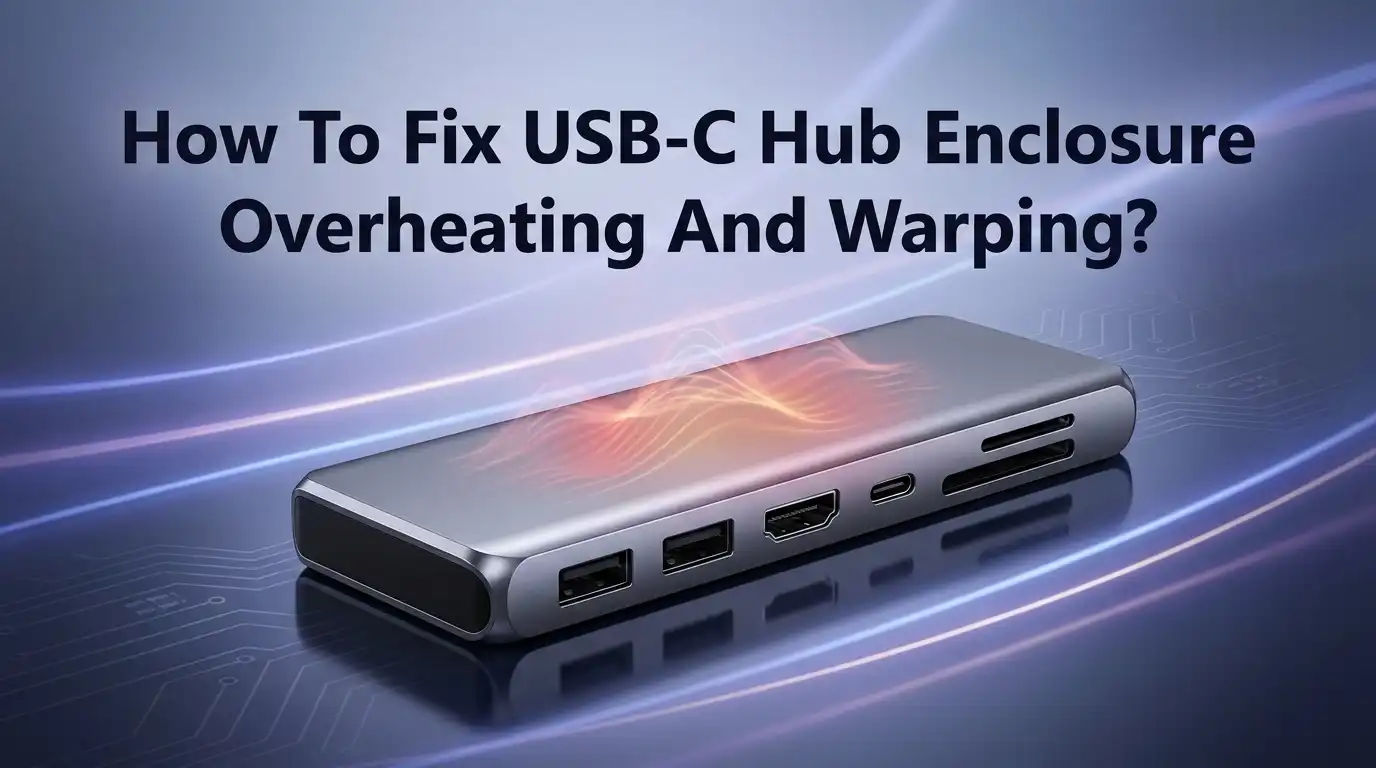
How To Fix USB-C Hub Enclosure Overheating And Warping?
Your USB-C hub feels hot to touch. You notice the plastic case looks slightly bent. This is a common problem for many users today.
Overheating can cause real damage to your devices. Sustained heat can melt or fry your USB-C ports. This means costly repairs or a full replacement.
Warping happens when plastic enclosures cannot handle constant heat exposure. The material slowly loses its shape. This affects how well your hub works and how long it lasts.
The good news? You can fix this problem and prevent it from happening again. Most overheating issues come from simple causes. These include too many connected devices, poor airflow, or weak power supply.
This article will show you exactly how to spot the warning signs. You will learn the real causes behind hub overheating. We will also cover practical fixes you can use right now.
By the end, you will know how to keep your USB-C hub cool. You will also learn how to protect it from future heat damage. Let’s get started.
In a Nutshell
-
Too many devices connected at once can overload your hub and cause heat buildup.
-
Ventilation matters a lot. Keep your hub on a flat surface and never cover it with papers or other objects.
-
Material makes a difference. Metal enclosures release heat faster than plastic ones. Plastic hubs warp more easily under constant heat.
-
Placement counts too. Keep your hub away from other warm electronics or direct sunlight.
-
Airflow is your friend. A small fan or open space around the hub can lower temperatures during heavy use.
-
Power supply matters. Using the wrong power adapter can stress your hub and generate extra heat.
-
Ignoring heat issues can be costly. Sustained overheating can melt or fry your USB-C ports, and that means replacement, not just repair.
Follow these simple fixes, and your hub will run cooler, last longer, and work exactly the way it should.
Why USB-C Hubs Overheat And Warp
USB-C hubs generate heat because they work hard. When you connect multiple devices like external drives, monitors, and charging cables simultaneously, the hub’s internal circuitry processes a lot of electrical power. This power conversion creates heat as a natural byproduct.
Poor ventilation amplifies the problem. Most USB-C hubs have small vents or openings designed to release heat. If you block these openings by placing the hub against a wall, inside a drawer, or under papers, hot air gets trapped inside. The enclosure temperature rises quickly, and plastic components begin to soften.
Material choice matters significantly. Plastic enclosures conduct heat poorly compared to metal alternatives. Plastic also has a lower melting point, so sustained heat causes warping and deformation. Metal naturally dissipates thermal energy away from internal components more efficiently.
The power supply connection creates additional heat. When your hub draws more power than its power adapter can safely deliver, the internal voltage regulators work overtime. This excessive demand generates extra heat that the enclosure cannot release fast enough.
Location and surrounding conditions play a role too. Placing your hub near other heat sources like computer towers, heaters, or direct sunlight accelerates temperature buildup. Even room temperature affects how quickly a hub cools down.
Dust accumulation worsens everything. Dust particles settle on vents and block airflow. They act as insulation, trapping heat inside the enclosure. Over time, this creates a dangerous cycle where heat builds up faster than it escapes.
Understanding these causes helps you take action. High power demands, blocked ventilation, poor material design, inadequate power supplies, and unfavorable placement all work together to create overheating conditions. Each factor alone causes problems, but combined they accelerate damage to your hub’s ports and enclosure.
Signs Your Hub Is Running Too Hot
Your USB-C hub sends you warning signals when it runs too hot. Learning to spot these signs helps you prevent serious damage before it happens.
The most obvious sign is heat you can feel. Touch the enclosure with your hand. If it feels too hot to hold comfortably for more than a few seconds, your hub is overheating. This temperature tells you the internal components are working under stress.
Watch for visual changes to the plastic. Warping or discoloration means the enclosure has already experienced sustained heat damage. You might notice the casing looks slightly melted, bent, or discolored around the vents. This is a critical warning that action is needed now.
Pay attention to performance problems. Your hub might disconnect devices randomly or fail to recognize newly connected items. Overheating causes the internal circuits to malfunction temporarily. You may also notice slower data transfer speeds than normal.
Listen for unusual sounds. Some hubs have internal cooling components that work harder when temperatures rise. A whirring or buzzing noise means your hub is struggling to manage the heat load.
Check the power adapter connection. If the cable feels extremely warm or hot, your hub is drawing excessive power. This indicates the power supply is working overtime to fuel multiple connected devices.
Notice if your hub shuts down unexpectedly. Many hubs have built in thermal protection that cuts power when temperatures get dangerous. Your device simply stops working until it cools down. This is actually a safety feature, but it signals you need to make changes.
Sticky or unresponsive ports can also indicate heat damage. Internal components expand when hot, causing connection problems. If ports feel loose or devices fall out easily, overheating may be the cause.
These signs all point to the same problem: your hub needs better cooling conditions immediately.
Step-By-Step: Fixing An Overheating Hub
Start by unplugging your USB-C hub from power immediately. Let it cool down completely for at least 30 minutes before touching it again.
Next, disconnect all devices currently plugged into the hub. This removes the electrical load that generates heat. You want a clean slate to work with.
Examine the ventilation ports carefully. Use a soft brush or compressed air to remove any dust buildup blocking these openings. Dust acts like insulation and traps heat inside the enclosure.
Place your hub on a flat, hard surface with nothing covering it. Avoid soft materials like carpets, blankets, or cushions that block airflow. Wood or metal surfaces work best for heat dissipation.
Move your hub away from other heat sources like monitors, lamps, or heating vents. Heat from surrounding devices makes the problem worse. Give your hub at least 6 inches of clearance on all sides.
Check your power adapter connection. Make sure the cable sits firmly in the port with no loose connections. A loose connection creates electrical resistance and generates extra heat.
Now reconnect your devices, but limit the number you plug in simultaneously. Start with just 2 or 3 devices instead of filling every port. This reduces the power demand on your hub.
Monitor the temperature during use. If the hub feels warm but not hot after 15 minutes of operation, you are making progress.
Consider positioning a small fan nearby to improve airflow around the hub. Direct air circulation helps carry heat away from the enclosure.
Test your hub over several hours. Watch for the warning signs mentioned earlier like unexpected shutdowns or port stickiness. If problems continue, you may need to reduce your device load even further or explore alternative solutions that match your actual usage needs.
Repairing Or Managing A Warped Enclosure
When your USB-C hub enclosure warps, you face a real problem. The plastic or material has physically changed shape due to heat exposure. This warping means the damage is already done, but you can still manage it effectively.
First, stop using the hub immediately. Continued operation will make warping worse and may damage internal components. Let the enclosure cool completely before attempting any repairs. This cooling period prevents further structural damage.
Inspect the warped areas carefully. Minor warping might not affect functionality, but severe warping can misalign ports and connectors. Check if USB-C ports still align properly with your cables. If ports sit at odd angles, the enclosure damage is affecting internal alignment.
For minor warping, you have limited options. Some people place the cooled hub under light weight on a flat surface overnight. This gentle pressure sometimes helps the material settle back closer to its original shape. Never use heat or force, as these make warping worse.
For more serious warping, consider whether the hub is still usable. Test each port individually with different devices. If most ports work fine despite the warped appearance, you can continue using it with better cooling practices in place.
Prevention becomes your focus now. Even if your hub still functions, warping signals that heat management failed. Going forward, use external cooling fans during heavy work. Space your hub away from other devices. Never cover ventilation openings. Reduce the number of devices you connect simultaneously.
Warped enclosures also become cosmetically unappealing. If appearance matters for your setup, you might explore replacement options. Some users find that upgrading to a metal enclosure hub prevents future warping entirely, since metal dissipates heat far more effectively than plastic.
Track your hub’s performance over the coming weeks. If warping continues spreading or ports begin failing, replacement becomes necessary rather than optional.
Best Practices To Prevent Future Overheating
Preventing future overheating starts with understanding what causes the problem. Your hub generates heat when multiple devices draw power simultaneously. Reduce the number of devices you connect at once. Most hubs work best with three to four active connections rather than everything plugged in.
Placement matters significantly. Put your hub on a flat, hard surface where air flows freely around it. Never place it inside a drawer, cabinet, or enclosed space. Keep it away from monitors, lamps, and heating vents. These heat sources make your hub work harder to stay cool.
Ventilation is non-negotiable. Check that all ports and vents remain clear of obstructions. Dust buildup blocks airflow and traps heat inside the enclosure. Wipe your hub regularly with a dry cloth. This simple habit prevents dust from accumulating on vents.
Use the correct power adapter for your hub. An undersized power supply forces your hub to work harder, generating excess heat. Check your hub’s specifications to ensure your adapter matches the required wattage.
Monitor temperature during heavy use. If your hub feels warm to the touch, disconnect a device or give it a break. Don’t wait for warning signs like performance drops or unexpected shutdowns.
Consider airflow improvements during peak usage times. Position a small fan nearby to circulate air around your hub. This costs nothing if you already own a fan and makes a real difference during data transfers.
Rotate your hub’s use. If you regularly transfer large files, spread the work across different days rather than doing everything at once. This gives your hub recovery time between sessions.
Finally, keep your hub away from direct sunlight and avoid placing it on surfaces that retain heat, like leather or fabric. Simple environmental adjustments prevent most overheating problems before they start.
Common Mistakes That Make Overheating Worse
You might be making mistakes that push your USB-C hub toward failure. Connecting too many devices simultaneously is the biggest error. When you plug in multiple high-power devices at once, your hub works overtime and generates excessive heat.
Blocking ventilation ports creates another serious problem. Some people place their hubs in tight spaces or cover them with cables and papers. This traps heat inside the enclosure and prevents cooling air from flowing around the device.
Positioning your hub near other heat sources accelerates damage significantly. Placing it next to monitors, desk lamps, or heating vents forces your hub to work in already-warm environments. The internal temperature climbs faster than it should.
Using an inadequate power supply is a mistake many overlook. Your hub needs enough power to handle all connected devices. When the adapter can’t deliver sufficient power, your hub strains harder and generates more heat as a result.
Leaving your hub in direct sunlight causes rapid temperature increases. Heat builds up inside the plastic or metal enclosure without escape. Even brief sun exposure can push temperatures into dangerous ranges.
Another mistake involves ignoring early warning signs. If your hub feels warm to the touch, you should reduce your device load immediately. Continuing heavy use after noticing heat problems leads directly to warping.
Stacking other items on top of your hub blocks airflow from above. Many people treat their hub like a convenient storage spot. This completely suffocates the device’s cooling system.
Finally, running your hub continuously without breaks causes cumulative heat damage. Your device needs rest periods to cool down between heavy usage sessions. Taking breaks prevents the sustained high temperatures that cause permanent warping and port failure.
Troubleshooting Persistent Heat Issues
When your USB-C hub keeps running hot despite your efforts, you need to dig deeper into what’s actually happening. Persistent heat issues usually point to one of two problems: either your hub is working too hard, or it cannot release heat properly.
Start by checking your power supply. An inadequate power adapter forces your hub to struggle. This struggle generates excess heat that the enclosure cannot handle. Verify that your power supply matches your hub’s requirements. If you’re connecting many power-hungry devices at once, the hub must work overtime to distribute power. This creates heat buildup that won’t stop until you reduce the load.
Next, examine your physical setup. Is your hub sitting on a soft surface like a bed, couch, or carpet? These materials trap heat underneath. Move your hub to a hard, flat surface like a desk or table. Heat needs to escape from all sides, not just the top. Leave at least two inches of space around your hub on every side.
Check for blocked vents. Dust and debris accumulate over time and clog ventilation ports. Use a soft brush or compressed air to clean these openings gently. Even small blockages reduce airflow significantly.
If heat persists after these steps, your enclosure material might be the issue. Plastic hubs simply cannot dissipate heat as well as metal ones. Plastic absorbs and holds heat, while metal conducts it away quickly. If your hub continues overheating, the internal components may be failing. Sustained heat can damage circuits and connections inside.
Consider using your hub for shorter sessions with breaks in between. This gives the enclosure time to cool down. If your hub still runs excessively hot after all these checks, internal damage may have already occurred. At this point, replacement becomes the safest option to protect your connected devices.
Final Thoughts
Overheating and warping don’t have to ruin your USB-C hub experience. Most problems come from simple issues you can fix today.
Good airflow makes the biggest difference. Give your hub space to breathe and keep vents clear.
Power management matters just as much. Don’t overload your hub with too many devices at once.
Remember that plastic and metal behave differently under heat. Metal enclosures handle heat better, while plastic warps faster under sustained stress.
Catching problems early saves you money and hassle. A warm hub is normal, but a hot or misshapen one signals trouble.
Don’t ignore warning signs like slow transfer speeds or random disconnections. These symptoms often point to heat damage building up inside your hub.
Small changes create big results over time. Moving your hub to a cooler spot or reducing connected devices can extend its life significantly.
Regular monitoring helps you stay ahead of issues. Check your hub’s temperature occasionally, especially during heavy use sessions.
If your enclosure already shows warping, don’t panic immediately. Many hubs still function despite cosmetic damage, though you should watch them closely.
Replacement becomes necessary when performance drops or ports stop working properly. Sustained heat damage cannot always be reversed once it reaches a certain point.
Your best strategy combines prevention with quick action. Address small heat issues before they become major failures that cost you time and money.
Think of your USB-C hub like any electronic device. It needs proper care, reasonable use, and attention to warning signs.
Simple habits protect your investment long term. Keep it cool, keep it ventilated, and keep an eye on how it performs.
With these practices in place, your hub can serve you reliably for years. Heat management isn’t complicated, it just requires consistent attention and a bit of common sense along the way.
Frequently Asked Questions
Why does my USB-C hub get so hot when I use it?
Your hub generates heat when it processes power for multiple devices simultaneously. The more devices you connect, the harder the hub works. Poor ventilation makes this worse because heat cannot escape properly. If your hub sits on a closed surface or near other electronics, temperature rises even faster.
Plastic enclosures trap heat inside more easily than metal ones do. This is why some hubs warm up quickly while others stay cooler. The power supply you use also matters. An undersized power adapter forces your hub to work harder and generate more heat.
Can overheating actually damage my hub’s ports?
Yes, sustained heat can damage USB-C ports permanently. Extreme temperatures can melt internal components or fry the port connections. Once this happens, your hub stops working properly and may need replacement.
Early signs include slow data transfers, random disconnections, or ports that stop responding. If you notice these issues, reduce your hub’s workload immediately. Catching problems early saves you from total failure.
What’s the difference between a hub that gets warm and one that overheats?
A warm hub is normal. Devices naturally generate heat during operation. An overheating hub feels too hot to touch or causes your hand to pull away quickly.
If your hub is warm but you can hold it comfortably for 10 seconds, that’s acceptable. If it burns your hand or feels extremely hot, you have an overheating problem. Warping or discoloration on the plastic means damage is already happening.
Should I use an external fan to cool my hub?
An external fan helps during heavy work sessions. Point it toward your hub to push cool air across the enclosure. This works especially well when you’re transferring large files or running multiple devices simultaneously.
Fans are not a permanent solution though. They help manage symptoms but don’t fix the root cause. Focus first on reducing device load and improving airflow naturally.

Hi, I’m Jessamine Rowell, the founder and voice behind ResizeMake (https://resizemake.com/), a space where I share my love for technology with the world. I write detailed and honest reviews on the latest tech products, gadgets, electronic devices, and trending Amazon items to help readers make smarter buying decisions.