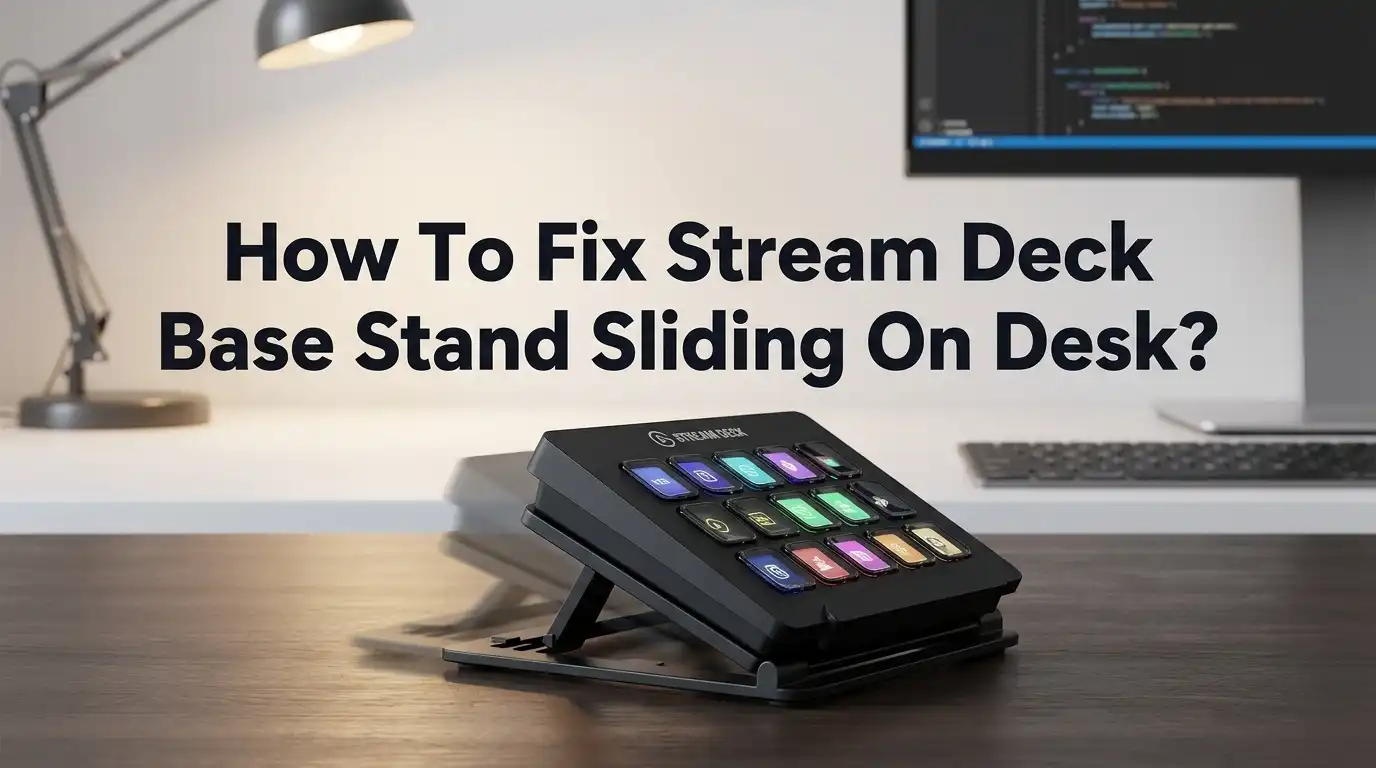
How To Fix Stream Deck Base Stand Sliding On Desk?
Do you press a button on your Stream Deck, only to watch it slide across your desk? You are not alone.
This is a common issue, even with newer models like the MK.2. Its rubber base feels grippy at first. But on smooth desks like wood or laminate, that grip often fails.
The good news? This problem has simple fixes. Some take less than five minutes.
In this guide, we will show you why your Stream Deck keeps sliding. We will also cover the most common mistake people make. Hint: it involves a plastic film you might have forgotten to remove.
You will learn quick, budget friendly solutions like anti-slip pads and strong adhesives. We will also look at permanent options, like desk mounts and elevated brackets, for those who never want to deal with sliding again.
By the end of this article, you will know exactly how to keep your Stream Deck steady. No more chasing it across your desk mid-stream or mid-workflow.
Let’s get your setup stable and secure.
In a Nutshell
Here is a quick summary to stop your Stream Deck from sliding:
-
Check for plastic film: Sometimes a protective sheet is still on the base. Peel it off first. This simple step often solves the problem instantly.
-
Test your desk surface: Smooth desks like glass or laminate cause more sliding. The rubber base on models like the MK.2 works better on textured surfaces.
-
Add anti-slip pads: These are a great temporary fix. You can cut them to fit the base perfectly. They grip well without leaving marks.
-
Try strong adhesive strips: Double-sided tape or removable mounting strips hold your device firmly. These work well for a semi-permanent setup.
-
Consider a mount for a permanent fix: An elevated bracket or desk mount lifts your Stream Deck completely. This removes sliding as an issue entirely.
-
Avoid weak tape: Cheap or thin adhesives wear out fast. They will not hold up to regular button pressing.
With these fixes, your Stream Deck will stay put no matter how hard you tap.
Why Your Stream Deck Slides On The Desk
Your Stream Deck slides because the base lacks enough grip on your desk surface. This happens even with the rubber base on newer models.
Smooth desk materials cause the problem. Glass, laminate, and polished wood surfaces don’t provide friction. When you press buttons, your finger pushes down and forward. This motion transfers to the device, making it glide across the desk.
The rubber base on your Stream Deck is designed to grip. However, it works better on rougher surfaces like fabric or unfinished wood. On slick desks, the rubber loses its effectiveness.
Weight distribution matters too. Your Stream Deck is lightweight. When you tap buttons with force, the momentum pushes the entire device. A heavier object would resist this movement better.
Temperature and humidity affect grip as well. Cold rubber becomes less sticky. Humid environments can create a thin moisture layer between the base and desk, reducing friction.
Some users still have protective plastic film stuck to the bottom. This thin layer completely prevents the rubber from touching your desk. Check underneath your device to confirm the protective sheet is removed.
Cable tension plays a role. If your USB cable pulls at an angle, it creates sideways force on the device. This makes sliding worse over time.
Your desk type is the biggest factor here. Shiny or smooth surfaces are the main culprits. Understanding why your Stream Deck slides helps you pick the right solution. Once you know the cause, fixing it becomes straightforward.
Step 1: Check And Remove The Protective Film On The Base
Your Stream Deck might still have a protective plastic film stuck to its base. This film gets applied at the factory to protect the rubber during shipping and storage. Many users forget to remove it before placing their device on the desk.
Check the bottom of your Stream Deck right now. Look for a thin, clear plastic sheet covering the rubber base. Run your finger along the edges to feel if plastic is present. You should feel rubber that is slightly tacky and soft to the touch.
If you find plastic film, peel it away slowly and carefully. Start from one corner and work your way across the entire base. The film usually comes off in one piece without much effort. Don’t rush this step, as you want to remove it completely.
After removing the film, inspect the rubber base underneath. It should look dark and feel slightly sticky when you touch it. This stickiness is what creates grip on your desk surface. Clean the rubber with a dry cloth to remove any dust or debris that collected under the film.
Now test your Stream Deck on your desk. Press buttons firmly and see if sliding still happens. Many users find that removing the protective film solves the problem entirely, especially on rougher desk surfaces like fabric or textured wood.
If your Stream Deck continues to slide even after removing the film, the issue likely comes from your desk material being too smooth. Glass, laminate, and polished wood surfaces offer very little friction. In that case, you will need to move on to the next solutions like anti-slip pads or adhesive strips.
Step 2: Test The Stock Rubber Base On Different Surfaces
Before you apply any permanent fixes, test how your Stream Deck performs on your current desk. This step helps you understand if the rubber base alone can solve your sliding problem.
Start by placing your Stream Deck on your desk in its normal working position. Press the buttons firmly and repeatedly. Watch closely to see if the device shifts or moves across the surface. Pay attention to how much movement happens with light presses versus hard presses.
Test your Stream Deck on different areas of your desk. Move it to spots with different textures and finishes. Try a smooth laminate area, a wooden section, and any other surfaces you use regularly. The rubber base grips some materials better than others, so this test reveals which surfaces cause the most trouble.
Next, check how your Stream Deck behaves when you use it at different angles. Tilt your desk slightly or test it on a slanted surface. Notice if the rubber base holds firm or if it starts to slip. This tells you whether gravity plays a role in your sliding issue.
Pay attention to temperature and humidity too. Test your Stream Deck on hot days and cool days. The rubber base performs differently depending on weather conditions. Some environments make the rubber stickier, while others reduce its grip.
Document which surfaces cause the most sliding. Take notes about specific desk materials that work well and those that don’t. This information helps you decide which solution will work best for your situation. If the rubber base performs well on most surfaces, you might only need a targeted fix for problem areas. If it slides everywhere, you’ll need a stronger solution across the board.
Step 3: Apply Anti-Slip Pads For A Secure, Removable Fix
Anti-slip pads offer a simple solution that doesn’t damage your desk or Stream Deck. These rubber or silicone pads stick to the bottom of your device and create extra grip between your Stream Deck and desk surface.
How to apply anti-slip pads correctly: Start by cleaning the bottom of your Stream Deck with a dry cloth. Remove any dust or debris that might prevent the pads from sticking properly. The cleaner your base, the better the adhesion will work.
Cut your anti-slip pads to fit the base of your Stream Deck. Most pads come in sheets that you can trim with scissors. Place pads at the four corners and one in the center for balanced support. This positioning distributes pressure evenly across your desk.
Use a strong adhesive to secure the pads. Double-sided tape works well for removable application. If you want a more permanent solution, consider using adhesive-backed pads that come pre-glued. Press each pad firmly for about 10 seconds to ensure good contact.
Why this method works best: Anti-slip pads are removable, so you can take them off without leaving sticky residue behind. They’re affordable and widely available. The rubber material grips smooth surfaces like laminate and polished wood very effectively.
Test your Stream Deck immediately after applying the pads. Press buttons firmly and check for any movement. The sliding should stop completely. If your device still moves, add one or two more pads to increase friction.
This fix typically lasts for months before pads wear down. When they do, simply peel them off and apply new ones. No special tools or technical skills are required.
Step 4: Use Double-Sided Tape Or Command Strips For A Firmer Hold
Double-sided tape and Command strips work well when anti-slip pads alone don’t stop the sliding. These adhesive solutions create a stronger bond between your Stream Deck base and desk surface.
Start by cleaning both the bottom of your Stream Deck and your desk area with a dry cloth. Remove any dust, oils, or debris that might prevent the adhesive from sticking properly. Let both surfaces dry completely before moving forward.
Cut your double-sided tape or Command strips into small pieces. Place them around the perimeter of your Stream Deck base, leaving space in the middle. This pattern prevents the tape from bunching up and keeps your device stable.
Press down firmly on each piece for about 30 seconds. Apply steady pressure across the entire base. The adhesive needs time to bond with both surfaces, so avoid using your Stream Deck for at least an hour after application.
Test your Stream Deck by pressing buttons with normal force. Watch for any movement or shifting. If sliding still occurs, add more strips or tape pieces to increase grip.
The main advantage of this method is adjustability. You can reposition your Stream Deck if needed. Command strips especially allow removal without damaging your desk finish, making them ideal for rental spaces or temporary setups.
This solution works best on smooth desks like wood or laminate. The adhesive fills microscopic gaps that prevent rubber from gripping effectively. Combined with anti-slip pads underneath, this creates a dual-layer protection system that stops virtually all movement.
Replace the tape or strips every 6 to 12 months as adhesive loses strength over time. Monitor your setup regularly to catch sliding before it becomes a problem.
Step 5: Explore Mounting Brackets And Elevated Stands For A Permanent Fix
Mounting brackets and elevated stands offer a permanent solution when temporary fixes don’t work. These options completely eliminate sliding by securing your Stream Deck to your desk or positioning it above the surface.
Desk mounting brackets attach your Stream Deck directly to your desk using clamps or adhesive bases. This method prevents any movement because your device stays locked in place. The bracket holds your Stream Deck at a fixed angle, which also improves your viewing experience. Most brackets work with standard desk edges and don’t require drilling holes.
Elevated stands position your Stream Deck on a raised platform above your desk surface. This approach separates your device from direct contact with your desk, eliminating friction issues entirely. The stand sits on your desk like a normal item, so you can move it whenever needed. Many people prefer this option because it’s completely reversible.
3D-printed mounting solutions are available for specific Stream Deck models, particularly the 15-key version. These custom brackets fit your device perfectly and mount securely to desk surfaces. You can find designs online and have them printed locally or order them pre-made.
Before choosing a mounting option, consider your desk setup and how often you move your Stream Deck. If you want flexibility, an elevated stand works best. If you prefer a permanent installation, a desk bracket is ideal.
Test the height and angle before committing to any mounting solution. Your Stream Deck should sit at a comfortable level for button pressing. Make sure the mounting method doesn’t block your view of the screen or interfere with cable connections.
Common Mistakes That Keep Your Stream Deck Sliding
Many people make simple mistakes that cause their Stream Deck to keep sliding around. Understanding these errors helps you fix the problem quickly and avoid repeating them.
The most common mistake is leaving the protective plastic film on the bottom of your Stream Deck. This film exists only to protect the device during shipping. Once you unbox your Stream Deck, you must remove this film completely. The plastic creates a slippery surface that defeats any grip your rubber base might have.
Another frequent error is assuming the rubber base works equally well on all desk types. The truth is more complex. Your rubber base performs well on rough surfaces like carpet or textured mats. However, smooth surfaces such as polished wood, laminate, or glass create problems. The rubber simply cannot grip these materials effectively.
People also underestimate how much force button pressing creates. When you tap Stream Deck buttons repeatedly during streaming, the device shifts slightly with each press. These small movements add up over time, causing noticeable sliding.
Using weak adhesives is another mistake worth avoiding. Standard tape or cheap adhesive strips fail quickly. They lose their stickiness within weeks, leaving you frustrated and back to square one.
Many users also skip the cleaning step before applying solutions. Dust and debris on your desk or Stream Deck bottom prevent proper contact. This reduces the effectiveness of anti-slip pads or adhesive strips significantly.
Finally, people sometimes choose mounting solutions that don’t match their setup. A permanent bracket works great if your desk arrangement stays constant. However, if you move your Stream Deck frequently, temporary solutions like anti-slip pads make more sense.
Troubleshooting: When Your Stream Deck Still Moves After Fixes
Your Stream Deck might still slide even after trying basic fixes. This happens for specific reasons you can identify and solve.
Check your cleaning job first. Dust particles between the base and desk create tiny gaps. These gaps reduce grip significantly. Wipe the bottom of your Stream Deck with a dry cloth again. Then clean your desk surface thoroughly. Sometimes a second cleaning reveals debris you missed the first time.
Test your adhesive strength. If you used tape or strips, they may not have enough contact time. Press down on each piece for a full minute instead of 30 seconds. Apply firm, even pressure across the entire base. Weak adhesion causes gradual sliding over time.
Verify your anti-slip pads are positioned correctly. Pads must cover the actual contact points where your Stream Deck touches the desk. If pads only cover part of the base, other areas still slide. Cut pads to match your base dimensions exactly.
Consider your desk material. Smooth surfaces like polished wood or laminate defeat most solutions. Textured desks grip better naturally. If your desk is extremely slick, temporary fixes may never work completely.
Evaluate your button pressing force. Heavy pressing creates downward pressure that pushes your Stream Deck sideways. Use lighter touches when possible. This reduces sliding motion significantly.
If sliding continues after these checks, your setup probably needs a permanent solution. Mounting brackets or elevated stands eliminate sliding entirely because they secure your Stream Deck to your desk structure rather than relying on surface grip alone. These options work regardless of desk material or button force.
Final Thoughts
Your Stream Deck should stay put once you apply the right fix. Sliding happens for simple reasons, and the solutions are just as simple.
Start with the easy fixes first. Check for plastic film on the base. Clean the surface. These two steps solve many cases instantly.
If sliding continues, anti-slip pads offer the best balance. They cost little, need no tools, and grip well on most desk types. This makes them a smart first choice for most users.
Desk mounts and elevated stands work best for permanent setups. If you never move your Stream Deck, these options remove sliding as a problem entirely. They also free up desk space.
Your desk material matters more than people think. Smooth wood and laminate desks need stronger solutions than textured surfaces. Test your fix on your actual desk before assuming it works.
Button pressing force also plays a role. Heavy typists need stronger grip solutions than light touch users. Match your fix to your own habits.
Remember that no single solution works for everyone. Your setup, desk material, and usage style all affect what works best. Testing different methods helps you find your ideal fix.
Take a few minutes to diagnose your specific problem before buying anything. Check the film, clean the surface, and think about your desk type. This simple process saves time and frustration.
A stable Stream Deck makes your workflow smoother and more enjoyable. Once you fix the sliding issue, you can focus on your actual work instead of chasing your device around the desk.
Frequently Asked Questions
Why does my Stream Deck slide when I press buttons?
Button pressing creates downward force. This force pushes your Stream Deck sideways on smooth surfaces. Your desk material matters most. Polished wood, laminate, and glass are slippery. The rubber base on newer models helps, but it cannot grip all surfaces equally well.
Should I remove the plastic film from the bottom?
Yes, absolutely remove it. Many people forget this step. The plastic film prevents the rubber base from making contact with your desk. Without removal, your Stream Deck will slide no matter what else you try. Check the bottom carefully before using your device.
What is the best non permanent solution?
Rubber anti slip pads work best. Cut them to fit your Stream Deck base. They stick to the bottom and grip your desk without damage. You can remove them later without leaving marks. These pads handle most desk types well.
Can I use double sided tape instead of anti slip pads?
Yes, double sided tape works. Command strips also work. They hold your Stream Deck in place without permanent damage. Tape takes less time to apply than pads. However, pads last longer and handle repeated button pressing better. Test the adhesive strength after 24 hours.
What if nothing works on my smooth desk?
Consider an elevated desk mount or bracket. These solutions lift your Stream Deck off the desk surface. Mounting eliminates sliding entirely. They work on any desk material. This is your best option for permanent setups or extremely slippery surfaces.

Hi, I’m Jessamine Rowell, the founder and voice behind ResizeMake (https://resizemake.com/), a space where I share my love for technology with the world. I write detailed and honest reviews on the latest tech products, gadgets, electronic devices, and trending Amazon items to help readers make smarter buying decisions.