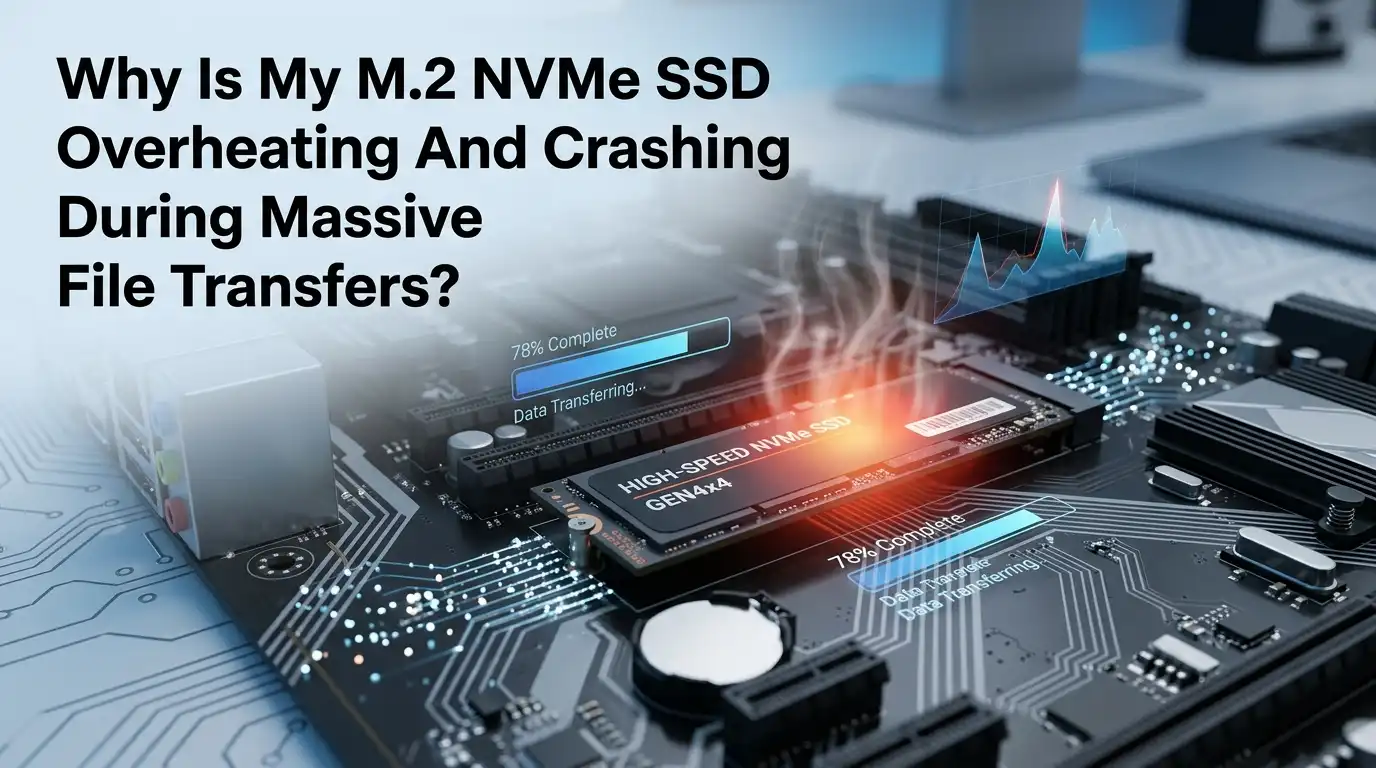
Why Is My M.2 NVMe SSD Overheating And Crashing During Massive File Transfers?
If your M.2 NVMe SSD gets hot, slows down, freezes, or even drops out during a huge copy job, you are not imagining it. This problem is common, especially with fast drives, compact cases, hot GPUs, and long write sessions.
A quick file copy may look fine, but a massive transfer pushes the controller, cache, and NAND for a much longer time.
That is when weak cooling, old firmware, poor airflow, or a bad enclosure often show up. The good news is simple. You can test the cause, fix it in a clear order, and make your drive stable again without guessing.
In a Nutshell
- Massive file transfers create sustained heat. A short benchmark may not expose the problem, but a long copy job keeps the SSD controller busy for minutes or hours. That steady load raises temperature fast. Once the drive crosses its safe range, it may throttle, pause, disconnect, or trigger errors that look like a crash.
- Heat is common, but heat is not always the only cause. An SSD can also fail during a huge transfer because of old firmware, a weak USB enclosure, poor motherboard placement, damaged file system data, or a power issue. You need to test before you replace parts.
- Start with monitoring, not shopping. Check the SSD temperature, SMART health, and error warnings during a real transfer. If the temperature climbs hard before the failure, you have a strong clue. If temperature looks normal, move to firmware, enclosure, cable, and file system checks next.
- Cooling fixes work best when they are simple and direct. A proper heatsink, a correctly placed thermal pad, better case airflow, and distance from GPU heat solve many cases. A fancy fix is not always the best fix. Good contact and fresh air matter more than looks.
- Speed drops and real crashes are not the same thing. Some drives slow down after their fast cache fills. That is normal behavior. A full disconnect, blue screen, frozen copy window, or repeated file corruption is different. Learn that difference first so you do not chase the wrong fix.
- The safest repair path is step by step. First watch temps. Next fix cooling. Then update firmware and drivers. After that, check power, cable, enclosure, and SMART health. This order saves time, lowers risk, and gives you the best chance of stopping the crash for good.
What Actually Happens During Massive File Transfers
A massive file transfer is harder on an NVMe SSD than many people expect. The drive controller stays busy, the write cache fills, and the NAND has to keep accepting data without a break. That constant work creates heat, especially on fast PCIe Gen 4 and Gen 5 drives.
At first, the SSD may look normal. Speeds stay high, and the system feels smooth. After a few minutes, heat builds inside the controller area, not just across the sticker or top plate. If cooling is weak, the drive starts protecting itself.
That protection can look like a speed drop, a freeze, or a disconnect. Pros: you can often stop the issue with better cooling and firmware updates. Cons: the symptoms can look like software failure, so many people misread the root cause and waste time on the wrong fix.
The Most Common Signs Heat Is the Real Problem
Heat usually leaves clues before a full crash. The first clue is a fast transfer that starts strong and then drops hard after a few minutes. The second clue is a copy job that pauses, resumes, and pauses again. A third clue is a drive that disappears until you reboot.
You may also notice your system locking up during backups, game installs, video projects, or huge archive extractions. In some cases, Windows logs disk errors, but the real trigger is temperature. If the SSD sits under a hot GPU, this pattern becomes even more likely.
Pros: heat problems are often repeatable, so they are easier to test. Cons: similar signs can come from firmware bugs, bad enclosures, or file system errors. That is why you should never assume. You should test the transfer, watch the temperature, and compare both at the same time.
Check Temperatures Before You Buy Anything
Before you buy a heatsink or a new drive, measure what the SSD does during a real workload. Open a drive tool that shows SSD temperature and SMART health. Then start the same large file transfer that usually causes trouble. Watch the numbers live instead of checking them after the crash.
Many consumer NVMe drives are rated to operate up to about 70 C, and many users see better long term stability when the drive stays much lower during normal use. If the temperature rises quickly and the crash follows, you have real evidence.
Do this in three steps. First, note idle temperature. Second, start a transfer over at least several minutes. Third, record the highest value before failure. Pros: this method gives clear proof. Cons: software tools can report more than one sensor, so you need to focus on the main drive temperature and warning fields.
Install or Reinstall the M.2 Heatsink the Right Way
A heatsink helps only when it touches the hot parts correctly. Many overheating cases come from bad contact, missing plastic film on the thermal pad, or a pad that is too thick or too thin. A loose heatsink is almost useless.
Power down the PC and remove the drive carefully. Check the thermal pad. Make sure no protective film remains. Confirm the pad meets the controller and NAND area with even pressure. Then reinstall the motherboard shield or aftermarket heatsink without bending the SSD.
Pros: this is often the fastest fix, and it costs little if your board already includes a shield. Cons: poor installation can make temperatures worse, and some thin shields look good but do not move much heat. If your drive came with a factory heatsink, keep that original setup unless the maker gives another approved option.
Improve Case Airflow Around the Drive
Even a good heatsink fails if hot air stays trapped around the SSD. That is why case airflow matters so much. If your front intake is weak, filters are clogged, or cables block the air path, the SSD keeps breathing warm air. Cool metal does not help much in hot air.
Start with the easy checks. Clean dust from filters and fans. Move cables away from the front to back air path. Make sure intake and exhaust fans are both working. If your case sits in a tight desk compartment, pull it into open space during testing.
Pros: better airflow cools the whole system, not just the SSD. Cons: it may increase fan noise, and tiny cases have less room for improvement. Still, airflow changes are one of the most reliable fixes because they reduce the ambient heat feeding the problem.
Move the SSD If the GPU Is Cooking It
Motherboard slot location matters more than many users think. If your main M.2 slot sits directly under a hot graphics card, the SSD may get baked by GPU exhaust during file transfers, gaming downloads, or content work. The SSD may not be the original heat source at all.
If your board has another full speed M.2 slot, test the drive there. You may lose nothing important, or you may trade a tiny speed difference for much better stability. Check your board manual first so you know the lane layout and any shared port limits.
Pros: moving the drive can cut heat without buying extra parts. Cons: some secondary slots run slower or share bandwidth with other devices. Even so, a stable drive at a slightly lower peak speed is usually far better than a faster drive that crashes in the middle of a long copy.
Understand Cache Drop Versus Real Failure
A speed drop does not always mean overheating. Many SSDs use a fast cache area to handle short bursts. Once that cache fills during a huge transfer, write speed can fall to a lower sustained rate. That change can be normal, especially on budget or DRAM less models.
This matters because people often call every slowdown a crash. A normal cache drop still keeps the transfer running. A real failure looks different. The copy hangs forever, the drive vanishes, the system freezes, or you see repeated I O errors.
Pros: knowing this difference stops unnecessary returns and bad upgrades. Cons: it can confuse diagnosis because a hot drive may show both symptoms at once. The smart move is to track speed and temperature together. If speed falls but the transfer finishes cleanly, cache behavior may be the main story.
Update Firmware and Storage Drivers
Firmware can affect stability, thermal behavior, compatibility, and error handling. If your SSD maker offers a firmware update tool, use it. Some brands also provide health checks, temperature readings, diagnostic scans, and update alerts in the same utility. This step is easy to skip, but it matters.
Also update your motherboard chipset drivers and storage related drivers from the board maker or system maker. Then check for a BIOS update if your platform has known storage fixes. Reboot after each major update and retest the same large transfer.
Pros: firmware and driver updates can fix crashes without any hardware change. Cons: updates always carry some risk if power fails during the process, so back up your data first. Never run the update in the middle of an unstable session or during an active copy job.
Check Power, Enclosure, and USB Issues
If your NVMe drive sits inside a USB enclosure, the enclosure itself may be the weak point. Some bridge chips run hot. Some enclosures have poor thermal contact. Some cables or ports also fail during long sustained writes. The SSD may be healthy while the enclosure is not.
Test the drive with a different cable, another port, and if possible another enclosure with better cooling. If the same SSD works fine inside a desktop M.2 slot but crashes in the enclosure, you have narrowed the problem quickly.
Pros: this test is simple and often reveals the real fault. Cons: it takes spare hardware or another system to compare results. Also check laptop and mini PC power limits, because a weak bus powered setup can create disconnects that look exactly like thermal failure.
Scan SMART Data and File System Health
When a drive overheats or crashes often, check the health data before you trust it again. Look for SMART warnings, critical warning flags, unsafe shutdown counts, and media or integrity related errors. A hot drive can leave behind more than just a bad mood.
After that, scan the file system and verify important data. A transfer that stops halfway can corrupt copied files or damage a large archive. If the SSD reports health warnings that keep rising after you fix cooling, back up the drive and plan for replacement.
Pros: health checks tell you whether you have a heat issue only or real drive damage too. Cons: SMART data can look technical and intimidating at first. Still, this step is vital because cooling a failing drive does not heal the damage that may already have started.
Build a Safe Transfer Routine That Prevents Crashes
Once the drive is stable, build habits that reduce the chance of a repeat problem. Break giant transfers into smaller batches when possible. Leave free space on the SSD so cache and background cleanup can work better. Avoid stacking a huge copy, a game download, and a virus scan at the same time. Heat loves piled up workloads.
You should also test your final setup with one long transfer after every change. That tells you whether the fix is real or temporary. If your drive still overheats after a good heatsink, proper airflow, a firmware update, and a safer slot, the SSD may simply not fit your workload or enclosure.
Pros: good habits cost nothing and protect long term performance. Cons: they do require patience. Still, prevention is easier than rebuilding lost data after one bad crash.
When You Should Replace the SSD
Sometimes the correct answer is replacement. If the drive still disconnects after cooling fixes, firmware updates, slot changes, and enclosure checks, you may be dealing with failing hardware.
Repeated SMART warnings, rising error counts, or corrupted files after stable temperatures are serious signs. Do not keep trusting a drive that keeps proving it is unsafe.
Back up everything important before more testing. Then compare the drive in another machine if you can. If the same fault follows the SSD, replace it. If the issue stays with one system, the motherboard, power delivery, or enclosure may still be at fault.
Pros: replacement ends the cycle if the drive is truly bad. Cons: it costs money and takes migration time. Still, that cost is often lower than the cost of lost files and wasted work hours.
FAQs
Can an NVMe SSD really crash a file transfer just from heat?
Yes. An NVMe SSD can throttle hard, freeze, disconnect, or trigger I O errors when temperature gets too high. In some systems, the operating system treats that event like a storage failure, so the copy job stops or the drive vanishes until reboot.
What temperature is too hot for most consumer M.2 NVMe SSDs?
Many consumer drives list an operating range that tops out around 70 C. Some controllers begin protective behavior before or around that area, while stronger emergency stages can happen at higher internal thresholds. The safest target is much lower during normal heavy use.
Do I always need a heatsink for an NVMe SSD?
No. Light everyday use may be fine without one. But a heatsink helps a lot during long file transfers, editing work, game installs, and other sustained tasks. It becomes more important in compact cases, near hot GPUs, and with faster drives.
Why does my SSD slow down but not crash?
That often happens because the fast cache fills up. The SSD then falls to its lower sustained write speed. That is normal on many drives. A real crash usually includes freezing, disconnects, copy failures, or repeated error messages.
Should I replace the drive right away?
Not always. First check temperature, heatsink contact, airflow, firmware, drivers, enclosure quality, and SMART health. If the drive keeps failing after those steps, or if health warnings and data errors rise, replacement is the safer choice.

Hi, I’m Jessamine Rowell, the founder and voice behind ResizeMake (https://resizemake.com/), a space where I share my love for technology with the world. I write detailed and honest reviews on the latest tech products, gadgets, electronic devices, and trending Amazon items to help readers make smarter buying decisions.