How To Fix Unresponsive Trackpads After Laptop Battery Swelling?
Have you noticed your trackpad feels stiff or barely clicks anymore? Your laptop might be sitting at a weird angle on your desk too.
These signs often point to one culprit: a swollen battery. This common issue affects many laptops, especially older MacBook Pro models.
When a battery swells, it pushes against the trackpad from underneath. This misaligns the internal components. The result is an unresponsive or hard to click trackpad.
You might also feel excessive heat or see the case bulge at the front edge. These are all warning signs your battery is expanding.
In a Nutshell
- Swollen batteries cause trackpad problems by pushing against the surface from below. This misaligns the mechanical parts inside.
- Watch for key warning signs: a trackpad that needs hard clicks, an uneven surface, or a laptop that rocks on your desk.
- Excessive heat and visible bulging near the front edge are also red flags. Don’t ignore these signals.
- This problem is common on certain MacBook Pro models, but it can happen to other laptops too.
- Never try a DIY fix for a swollen battery. These batteries can rupture or catch fire if handled wrong.
- The only real solution is professional battery replacement. Your trackpad may also need realignment or a full swap.
- Acting quickly matters. Delaying repair increases risk to your safety and your device.
Why Battery Swelling Affects Trackpad Function
A swollen battery physically changes the shape of your laptop from the inside. When the battery expands, it pushes upward against the trackpad area. This pressure lifts and deforms the trackpad surface.
The trackpad sits on top of mechanical components that need precise alignment. When a swollen battery pushes from below, it misaligns these parts. The result is a trackpad that feels unresponsive or requires excessive force to click.
Physical deformation happens gradually. Early on, you might notice one corner of the trackpad sits lower than the other. The surface becomes uneven. Over time, the entire trackpad can become difficult to use.
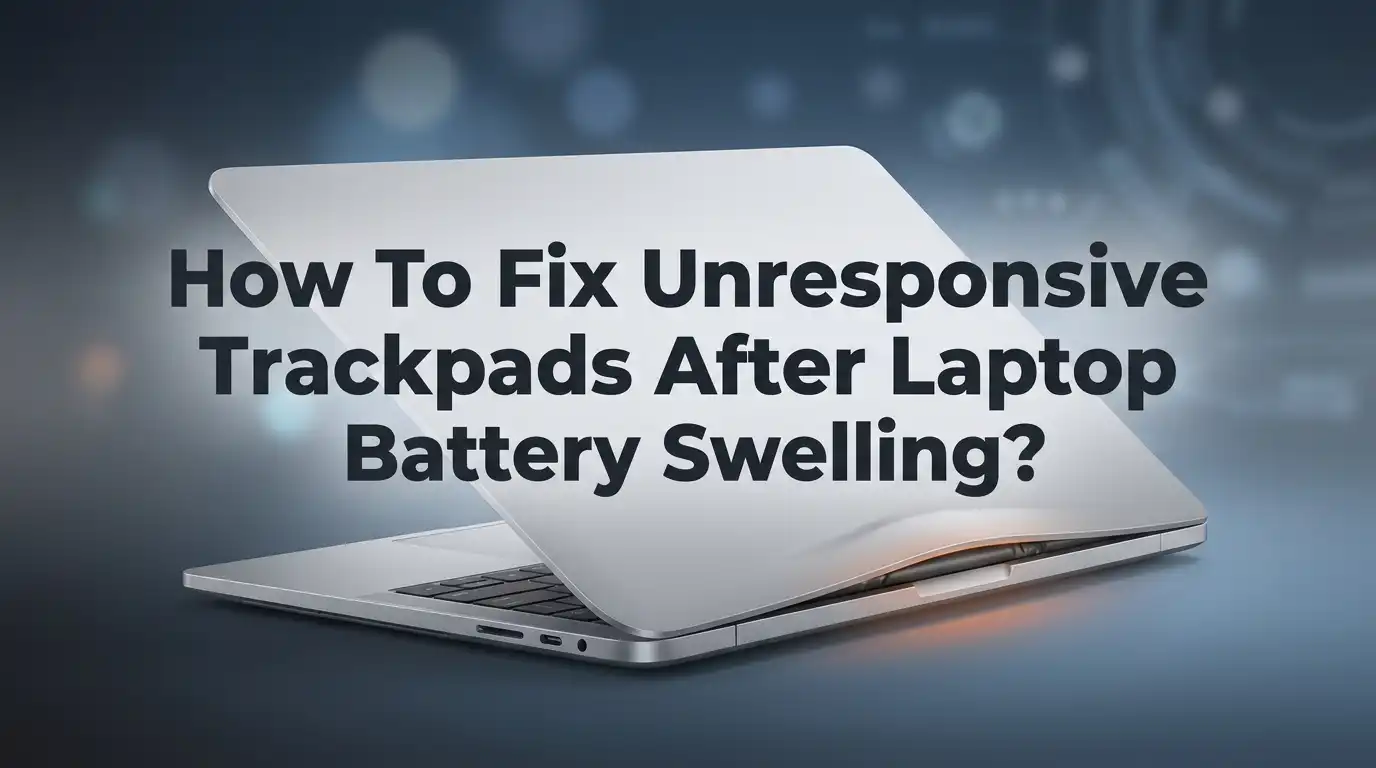
Your laptop’s case also warps. The front edge bulges outward where the battery swells. Your computer may rock back and forth on your desk instead of sitting flat. This uneven positioning puts more stress on the trackpad mechanics.
Heat generation increases significantly. A swollen battery works harder and produces more thermal energy. Your laptop gets hot during normal use. This extra heat damages the trackpad’s electrical components over time.
The pressure from battery expansion also affects the trackpad’s electrical connections. Wires and circuits that control the trackpad’s responsiveness can loosen or break. Even if the physical surface seems okay, the electrical signals may not reach the trackpad properly.
This damage is progressive. Ignoring the problem makes it worse. The battery continues expanding. The trackpad becomes increasingly unresponsive.
The mechanical alignment issue cannot be fixed without addressing the root cause. Simply adjusting or replacing just the trackpad won’t solve the problem. The swollen battery will continue pushing against whatever new trackpad you install.
The only real fix is removing and replacing the swollen battery. Once the pressure is gone, the trackpad can be realigned or replaced if needed. This is why professional service is essential. Technicians have the proper tools and safety equipment to handle swollen batteries safely.
Warning Signs of a Swollen Battery Impacting Your Trackpad
A swollen battery creates physical pressure that lifts and warps the trackpad area. This deformation makes your trackpad feel unresponsive or require excessive force to register clicks.
Uneven surface texture is one of the clearest warning signs. Run your finger across the trackpad. Does one side sit lower than the other? This happens because the expanding battery pushes upward unevenly, creating a sunken or tilted appearance.
Your laptop’s positioning on a desk reveals another clue. Place your laptop on a flat surface and watch it rock or tilt. A swollen battery shifts the internal structure, causing the case to warp. The front edge often bulges slightly where the battery expands most.
Clicking resistance increases dramatically as the battery swells. The trackpad requires hard pressure or repeated taps to register a single click. Some areas of the trackpad may become completely unresponsive while others still work partially.
Heat generation spikes noticeably. Your laptop feels warm to the touch, especially near the bottom edge or palm rest area. This heat comes from the battery expanding and pressing against internal components.
Visible case deformation appears at the lower front edge of your laptop. Look closely at the seams and edges. You might see slight bulging, gaps, or warping that wasn’t there before.
These signs together point strongly to battery swelling. A single symptom could indicate other issues, but multiple warning signs combined almost certainly mean your battery has expanded.
The critical point: do not ignore these warnings. Swollen batteries pose real safety risks including potential rupture or fire hazards. They also cause permanent damage to the trackpad and surrounding components if left untreated.
Professional inspection becomes necessary immediately. Only a qualified technician should open your laptop to assess the damage and replace the battery safely.
How to Safely Diagnose the Problem
Start by examining your laptop’s physical condition before assuming battery swelling is the culprit. Place your laptop on a flat, level surface and observe whether it sits evenly. A laptop that rocks or tilts indicates internal pressure pushing against the case.
Next, test your trackpad’s response by clicking different areas. Press gently on the top, middle, and bottom sections. Note whether some areas require more force than others. An uneven clicking sensation across the surface suggests mechanical misalignment caused by internal swelling.
Feel the temperature of your laptop’s exterior, particularly near the bottom. Run your hand along the lower edges and front area. Excessive warmth or heat that builds quickly during normal use is a significant warning sign. Swollen batteries generate more heat as they expand.
Look for visible signs of case deformation. Check the front lower edge and bottom panel for any bulging, gaps, or warping. Compare both sides of your laptop to see if one side appears higher or more curved than the other. Take a photo from the side angle to document any irregularities.
Listen for unusual sounds. A swollen battery may cause creaking or popping noises as internal pressure shifts. Pay attention to whether your laptop makes sounds that weren’t present before.
Check your trackpad’s surface with your fingertip. Run your finger across it to feel for uneven areas. A sunken or raised section indicates the battery is pushing upward and distorting the trackpad housing.
Important: if multiple signs appear together, stop using your laptop immediately. A swollen battery poses a genuine safety risk. Document what you observe with photos and notes, then contact a professional repair service. Provide them with your findings so they can prioritize the issue correctly. Do not attempt to open your laptop or remove the battery yourself.
Step-by-Step: What To Do When You Notice These Symptoms
When you notice these symptoms, act quickly. Your first step is to stop using your laptop immediately if you see multiple warning signs together. A swollen battery creates genuine safety risks, and continuing normal use could make the problem worse.
Power down your device completely. Do not force the shutdown. Allow your laptop to cool for several minutes before proceeding. Overheating batteries need time to stabilize.
Next, unplug all external devices and cables. Remove any USB drives, external hard drives, or charging cables. This prevents electrical complications if the battery situation worsens.
Document what you observe. Take clear photos of your laptop from different angles. Photograph the uneven trackpad area, any visible case bulging, and the desk positioning. These images help technicians understand the problem quickly.
Check your laptop’s warranty status. Most manufacturers cover battery replacement under specific conditions. Knowing your coverage options saves time and money during repair.
Contact a professional repair service immediately. Do not attempt opening your laptop yourself. Battery rupture or internal fires can occur during DIY attempts. Professionals have proper tools and safety equipment to handle swollen batteries.
While waiting for your appointment, keep your laptop in a cool, dry location. Avoid using it entirely. Store it away from flammable materials, pets, and people.
Do not leave your laptop plugged in. Charging a swollen battery increases fire risk significantly. Keep the device unplugged and powered off until a technician inspects it.
Inform the repair service about all symptoms you noticed. Mention the uneven trackpad surface, clicking resistance, heat generation, and case deformation. Detailed information helps technicians prepare for battery replacement and any trackpad realignment needed.
Remember that delaying professional service only increases danger. Battery swelling is progressive, meaning it gets worse over time. Early intervention protects your safety and your device.
What Professional Repair Involves
Professional repair for a swollen battery trackpad issue involves several important steps. A trained technician will first perform a complete diagnostic assessment of your laptop’s condition.
The repair process begins with safely powering down your device and allowing it to cool completely. The technician will then document the damage with photos and notes before proceeding. Safety comes first because swollen batteries require careful handling.
Next, the professional will remove your laptop’s bottom case using proper tools and techniques. This gives them access to the battery compartment and trackpad assembly. They will carefully inspect the battery for visible swelling, leakage, or damage.
The technician will disconnect the battery from your motherboard using anti-static precautions. This step is critical to prevent electrical hazards. They will then safely remove the swollen battery and dispose of it according to regulations.
After battery removal, the professional assesses your trackpad for damage. Sometimes the trackpad itself needs replacement if the swelling caused permanent deformation or internal component failure. Other times, realignment and cleaning are sufficient once the pressure is removed.
The technician will install a new battery that matches your laptop’s specifications. They will test the trackpad’s response before reassembling your device. Proper calibration ensures the trackpad functions smoothly across all areas.
Finally, the professional will run diagnostic tests to confirm everything works correctly. They will check for any residual damage or issues caused by the swelling. Your laptop will be reassembled carefully, and the case will be sealed properly.
Professional repair typically takes several hours to a full business day. The technician may provide a warranty on their work. Never attempt this repair yourself because the risks of battery rupture, electrical shock, or fire are serious. Professional expertise ensures your safety and your laptop’s proper restoration.
Tips to Prevent Battery Swelling and Future Trackpad Damage
Preventing battery swelling starts with understanding what causes it. Lithium ion batteries degrade over time, especially when exposed to heat, overcharging, or physical stress. Keep your laptop in a cool environment whenever possible. Avoid leaving your device in direct sunlight or inside hot cars.
Manage your charging habits carefully. Do not leave your laptop plugged in continuously for extended periods. Unplug your device once the battery reaches full charge. Frequent full discharge cycles also damage batteries, so aim for partial charging when you can.
Monitor your laptop’s temperature regularly. Excessive heat accelerates battery degradation. Clean your laptop’s vents and fans at least once monthly using compressed air. Ensure proper airflow by using your device on hard, flat surfaces rather than soft materials like beds or couches.
Check your battery health periodically through your operating system’s built in tools. Many laptops provide battery condition reports. If you notice your battery drains unusually fast or your device runs hot constantly, address these issues immediately.
Avoid physical impacts and drops. Even minor damage can compromise battery integrity and lead to internal swelling. Use a protective case when traveling with your laptop.
Update your system software regularly. Manufacturers often release updates that optimize battery management and thermal performance. These updates can prevent many battery related issues.
Store your laptop properly when not in use. Keep it in a dry place at room temperature. If you won’t use your device for several weeks, store it with a 50 percent charge rather than fully charged or completely drained.
Replace your battery proactively if it shows signs of age. Most laptop batteries last 3 to 5 years with normal use. Replacing an aging battery prevents the sudden failure that leads to swelling and trackpad damage.
By following these prevention steps, you protect both your trackpad and your safety.
Common Mistakes to Avoid
Ignoring early warning signs is the biggest mistake people make. Many users notice their laptop sits unleveled on the desk but dismiss it as normal. Heat coming from your device is not normal. Excessive warmth combined with trackpad resistance means action is needed now, not later.
Delaying professional service puts you at serious risk. A swollen battery can rupture or catch fire without warning. Waiting “just a few more days” to get your laptop repaired is dangerous. The longer you use a device with a swollen battery, the greater the safety hazard becomes.
Attempting DIY repairs is extremely risky and should never happen. Opening your laptop yourself can cause the battery to rupture. Battery rupture can lead to fire or explosion. You lack the proper tools, training, and safety equipment professionals have. Even experienced technicians take precautions when handling swollen batteries.
Forcing your trackpad to work harder won’t solve anything. Pressing harder or using external mice temporarily masks the real problem. The battery continues expanding underneath. Your trackpad damage may worsen while you ignore the root cause.
Continuing to use your laptop normally is another critical mistake. Keep using your device while the battery swells, and you increase fire risk significantly. Do not leave your laptop plugged in while waiting for repairs. Do not leave it in hot environments like cars or direct sunlight.
Failing to document your symptoms before contacting a repair service wastes valuable time. Take photos of the uneven trackpad surface from multiple angles. Note when the clicking became difficult. Write down any heat issues you experienced. This information helps the professional understand what happened and speeds up repairs.
Never assume the problem will resolve itself. Battery swelling only gets worse over time. The trackpad damage will not improve without addressing the battery. Get professional help immediately when you notice these warning signs.
Final Thoughts
A swollen battery causes real damage to your trackpad. This is not a small glitch you can ignore. The physical pressure from an expanding battery bends and misaligns delicate components.
Your safety matters more than your schedule. A swollen battery can rupture or catch fire. Waiting even a few extra days increases this risk significantly.
Professional repair is the only real solution here. Technicians have the tools and training to remove batteries safely. They also know how to check your trackpad for lasting damage.
Trying to fix this yourself puts you in danger. It also risks damaging your laptop further. Leave this job to people who do it every day.
Watch for early warning signs on your device. An uneven trackpad surface or excessive heat are clear signals. Your laptop sitting unevenly on a desk is another red flag.
Acting quickly protects both your device and yourself. The longer you wait, the worse the swelling gets. Early action often means simpler, cheaper repairs.
Once your battery gets replaced, your trackpad may still need work. Sometimes the surface needs realignment. Other times, a full trackpad replacement becomes necessary.
Prevention remains your best long term strategy. Good charging habits and regular health checks go a long way. Small efforts now save you bigger headaches later.
Your laptop serves you well when you treat it right. Battery swelling is a warning your device sends you. Listen to that warning and respond fast.
In the end, this issue comes down to safety and smart choices. Trust professionals with the repair process. Take prevention steps seriously moving forward.
Your trackpad and your safety depend on the same thing: quick, informed action when swelling starts.
Frequently Asked Questions
Is an unresponsive trackpad always caused by battery swelling?
Not necessarily. Trackpad problems can stem from software glitches, driver issues, or physical damage. However, if your trackpad feels uneven or requires excessive pressure to click, combined with your laptop sitting unevenly on your desk, battery swelling is a strong indicator. Look for visible case deformation at the lower front edge of your device.
Can I fix an unresponsive trackpad without replacing the battery?
No. The root cause must be addressed first. If swelling is pushing your trackpad out of alignment, replacing only the trackpad won’t solve the problem. The battery expansion will continue, causing the same issue again. You need professional battery replacement to fix this properly.
Is a swollen battery actually dangerous?
Yes, absolutely. Swollen batteries pose real fire and explosion risks. They generate excessive heat and can rupture inside your laptop. Using your device while the battery is swelling increases these dangers. Stop using your laptop and seek professional help immediately.
What should I do if I suspect battery swelling?
Stop using your laptop right away. Do not attempt to open it yourself or force the trackpad to work. Contact a professional repair service and describe your symptoms. Mention the uneven trackpad surface and the way your laptop sits on your desk. Let experts handle the battery replacement safely.
Will my trackpad work normally after battery replacement?
Usually yes, but not always immediately. Once the battery is replaced, the swelling pressure disappears. Your trackpad may need realignment or replacement if the swelling caused permanent damage. A professional technician will assess the trackpad’s condition after battery removal and recommend the next steps.

Hi, I’m Jessamine Rowell, the founder and voice behind ResizeMake (https://resizemake.com/), a space where I share my love for technology with the world. I write detailed and honest reviews on the latest tech products, gadgets, electronic devices, and trending Amazon items to help readers make smarter buying decisions.