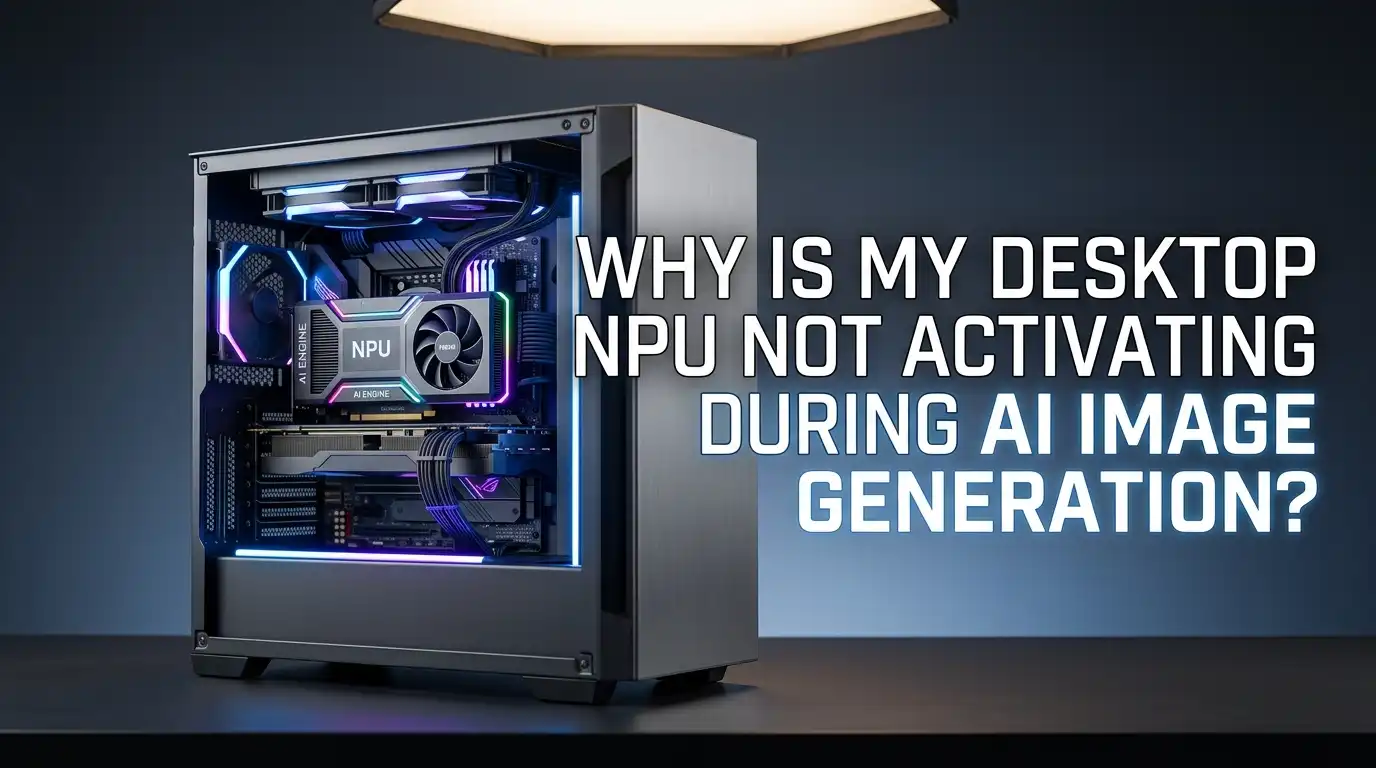
Why Is My Desktop NPU Not Activating During AI Image Generation?
You just bought a shiny new desktop PC with a processor that proudly boasts a built-in Neural Processing Unit. The box says it can accelerate AI tasks.
You fire up your favorite image generation tool, type a creative prompt, and wait. The image appears, but something feels off. You open Task Manager and your heart sinks. The NPU graph sits at a flat zero percent.
Your CPU is sweating, your GPU is doing all the heavy lifting, and the NPU you paid extra for is doing absolutely nothing. You are not alone. Let us get that NPU working for you.
Key Takeaways
- Your NPU is probably not broken. The chip is almost certainly fine. The real issue is almost always a missing driver, a BIOS setting, or software that simply does not know the NPU exists. Desktop NPUs are still new technology and software support is catching up slowly.
- The software must explicitly support your specific NPU. Generic AI tools like Automatic1111, ComfyUI, or LM Studio do not automatically detect NPUs. You need special software such as Intel OpenVINO, AMD Amuse, or Nexa SDK that is written to talk directly to your NPU hardware. This is the number one reason people see zero utilization.
- Your GPU is still the king for image generation. Even when your NPU works correctly, it will generate images slower than a dedicated graphics card. The NPU shines in power efficiency and freeing up your GPU for other tasks. Set your expectations accordingly.
- Driver and BIOS updates solve most problems. A shocking number of NPU issues disappear after a simple driver update from Intel or AMD and a quick trip into your motherboard BIOS to make sure the NPU is actually enabled. Never skip this step.
- Task Manager can be misleading. Sometimes your NPU is working but Windows Task Manager does not report the activity correctly. Old Windows builds or buggy driver versions can hide NPU usage. Always verify with multiple monitoring tools before assuming the worst.
Understanding What an NPU Actually Does
A Neural Processing Unit is a specialized chip inside your processor. Think of it as a tiny calculator that only knows how to do one thing really well. That one thing is running the math behind AI models.
Unlike your CPU which handles everything from opening Chrome to playing music, the NPU focuses entirely on matrix multiplication and other operations that neural networks need. Your desktop NPU sits right on the same silicon as your CPU cores.
It shares the same memory and power budget. This design makes it very power efficient but also limits its raw speed compared to a big GPU.
Many people expect the NPU to be a magic turbo button for AI image generation. It is not. It is more like a fuel efficient helper engine in a hybrid car. It helps, but it does not replace the main motor.
Pros of NPU Architecture
Extremely low power consumption, generates almost no extra heat, works silently without fan noise, and frees up your GPU for gaming or video editing tasks.
Cons of NPU Architecture
Much slower than even entry level GPUs for image generation, limited memory bandwidth, and requires specifically written software that only a handful of tools currently provide.
Why Most AI Image Tools Ignore Your NPU
Here is the hard truth that surprises most new desktop NPU owners. Popular AI image generation tools do not know your NPU exists. Stable Diffusion Web UI by Automatic1111, ComfyUI, Fooocus, and most other mainstream tools were built for GPU acceleration using CUDA or DirectML.
These tools look for Nvidia, AMD, or Intel GPUs. When they do not find a supported GPU, they fall back to the CPU. The NPU gets skipped entirely because the software simply never included code to talk to it. This is not a bug. It is just how the software was written.
Each NPU brand speaks its own language. Intel NPUs need OpenVINO. AMD NPUs need the Ryzen AI stack or XDNA drivers. Qualcomm NPUs need the QNN execution provider. Until the software developer adds specific support for your exact NPU model, that chip will remain at zero percent forever.
Pros of GPU First Software
Massive existing ecosystem, thousands of tutorials available, support for every major AI model, and continuous community updates.
Cons of GPU First Software
Leaves NPU hardware completely unused, forces your system to rely on power hungry GPU, and offers no benefit to laptop or compact desktop users who want longer battery life or lower electricity bills.
Check If Windows Even Sees Your NPU
Before you troubleshoot anything else, confirm that Windows actually detects your NPU. Press Ctrl and Shift and Escape together to open Task Manager. Click the Performance tab. Look for a tile labeled NPU.
If you see it, click on it and note the driver version and physical location. If you do not see the NPU tile at all, your operating system does not know the hardware exists. This happens more often than you might think.
Some desktop motherboards ship with the NPU disabled in BIOS by default. Other times Windows Update fails to grab the right driver. Open Device Manager by right clicking the Start button.
Expand the Software Components or System Devices sections. Search for entries that say Intel AI Boost, Intel NPU Accelerator, AMD IPU Device, or AMD XDNA. If you find these items with a yellow warning triangle, you have a driver problem.
Pros of Checking Task Manager
Free, built into Windows, gives instant confirmation, and requires zero technical knowledge to use.
Cons of Checking Task Manager
Can show zero usage even when NPU is actually working on some older Windows builds, does not tell you which apps support the NPU, and some motherboard BIOS settings can hide the NPU tile entirely.
Install or Update Your NPU Driver Manually
Windows Update does not always deliver the latest NPU driver. Many users report that their NPU sat idle for months until they manually downloaded the correct driver.
For Intel Core Ultra desktop processors, visit the Intel download center and search for the Intel NPU Driver for Windows. The latest version as of early 2026 is 32.0.100.3104 or newer. Download the ZIP file, extract it, and run the installer as administrator.
For AMD Ryzen desktop processors with NPU, go to the AMD Ryzen AI software page. Download the NPU driver package directly. AMD recommends version 32.0.203.280 or later for most Ryzen AI processors. After installing, reboot your computer.
Open Device Manager again and verify the NPU entry appears without any warning icons. Then open Task Manager and confirm the NPU tile now shows in the Performance tab. This single step resolves about forty percent of all NPU activation problems.
Pros of Manual Driver Installation
Guarantees you have the latest version, fixes most detection problems instantly, and often unlocks features that Windows Update drivers do not include.
Cons of Manual Driver Installation
Requires finding the correct download page which can be confusing, risks installing wrong driver if you misidentify your processor, and some driver installers need command line knowledge for AMD setups.
Enable the NPU in Your Motherboard BIOS
Desktop motherboards often ship with the NPU turned off. This sounds crazy but it is true. Motherboard makers sometimes default the NPU to disabled state to avoid compatibility issues with older operating systems.
Restart your computer and press the Delete or F2 key repeatedly during boot to enter BIOS. Look through every menu carefully. The NPU setting hides in different places depending on your motherboard brand.
On ASUS boards, check under Advanced and then CPU Configuration. On MSI boards, look for a section called AI Boost or NPU Configuration. On Gigabyte boards, search under Tweaker or Advanced CPU Settings.
On ASRock boards, dig into the Advanced and CPU Configuration menus. The setting might be called Intel AI Boost, Intel NPU, AMD XDNA, NPU Enable, or simply AI Accelerator. Set it to Enabled. Save changes and exit. Your computer will restart and Windows should now detect the NPU.
Pros of BIOS Enablement
Fixes the problem at the hardware level, ensures NPU is available to all software, and prevents future detection issues after Windows updates.
Cons of BIOS Enablement
BIOS interfaces vary wildly between brands making the setting hard to find, some older motherboards lack the option entirely, and changing wrong BIOS settings can cause system instability.
Use Software That Actually Supports Your NPU
This is the step where most people finally see their NPU spring to life. You must use a tool that explicitly supports NPU acceleration for image generation. For Intel Core Ultra desktop processors, download OpenVINO based tools.
Intel provides the OpenVINO GenAI toolkit which includes Stable Diffusion pipelines that can offload work to the NPU. Another option is the Intel AI Playground application available through the Microsoft Store, though its image generation features may be limited.
For AMD Ryzen desktop processors, download the Amuse AI application directly from AMD. This free tool was built in partnership with Stability AI and supports Stable Diffusion image generation using the AMD XDNA NPU.
Make sure you grab Amuse version 3.1 or later because older versions only used the GPU. Nexa SDK also supports AMD NPUs through the SDXL Turbo model.
Pros of NPU Specific Software
Guarantees NPU utilization, often provides one click installation, and gives you a working baseline to confirm your hardware is functional.
Cons of NPU Specific Software
Limited model selection compared to full GPU tools, fewer community tutorials and guides, and image quality may be lower than what you get from standard Stable Diffusion.
Configure the Correct Execution Provider
For users who want more control, you can manually route AI workloads to the NPU through ONNX Runtime. Think of execution providers as language translators. Your AI model speaks ONNX. Your NPU hardware speaks OpenVINO or VitisAI.
The execution provider bridges that gap. When you set up an ONNX Runtime session in Python, you must explicitly pass the correct provider string. For Intel NPUs, use OpenVINOExecutionProvider. For AMD NPUs, use VitisAIExecutionProvider. If you simply call the default session creation without specifying a provider, ONNX Runtime will pick the CPU and your NPU will sit idle.
Here is a quick reality check for AMD users. You need the Ryzen AI Software package installed including the correct XCLBIN file for your processor generation. Phoenix and Hawk Point chips need the phoenix directory. Strix Point and newer chips use different configurations.
Pros of Manual Provider Configuration
Gives you full control over where inference runs, works with custom AI pipelines, and teaches you how NPU acceleration actually functions under the hood.
Cons of Manual Provider Configuration
Requires Python programming knowledge, setup process is complex with many dependencies, and error messages are often cryptic and hard to debug.
Update Windows to the Latest Build
Your Windows version matters a lot for NPU functionality. Microsoft added NPU monitoring to Task Manager in Windows 11 build 22621.3527 and later. If you are running an older build, your NPU might be working but Task Manager simply cannot show it.
Even worse, some older Windows builds lack the driver frameworks that NPU software needs to function at all. Press Windows key and I to open Settings. Navigate to Windows Update and click Check for updates.
Install every available update including optional driver updates. Pay special attention to any updates that mention AI, NPU, or neural processing. Some users have reported that joining the Windows Insider Dev Channel unlocked NPU features before they reached the general public.
However, this approach carries risks because Insider builds can be unstable. Make a full system backup before trying that route.
Pros of Windows Updates
Free, automatic for most users, fixes multiple NPU issues at once, and often includes driver updates you would otherwise miss.
Cons of Windows Updates
Can take hours on slow connections, some updates introduce new bugs, and certain NPU features only appear in Insider builds which may crash your system.
Verify NPU Activity with Multiple Tools
Do not trust Task Manager alone. Several users report that their NPU showed zero percent in Task Manager while third party monitoring tools confirmed heavy NPU activity. This happens because Task Manager polls hardware counters differently than dedicated profilers.
Download the Windows Performance Recorder from the Windows ADK toolkit. Record a trace with the NeuralProcessing profile enabled while running your image generation software. Open the resulting trace file in Windows Performance Analyzer and look at the NPU Utilization graph.
If you see spikes matching your image generation attempts, your NPU is working perfectly and Task Manager is simply wrong. Intel users can also try the Intel NPU Monitoring Tool.
AMD users can watch the Ryzen AI activity through the AMD Software Adrenalin Edition overlay. Multiple confirmations give you confidence before you waste hours fixing a problem that does not exist.
Pros of Multiple Monitoring Tools
Catches false negatives from Task Manager, gives detailed timing data for each AI operation, and helps identify performance bottlenecks.
Cons of Multiple Monitoring Tools
Windows Performance Toolkit is a large download, the tracing process requires administrator rights, and interpreting the data needs some technical experience.
Understand the NPU Performance Reality
Let us set honest expectations. Even when your NPU activates perfectly, image generation will feel slow compared to a dedicated GPU. A typical desktop NPU delivers between ten and fifty TOPS of AI performance.
An entry level Nvidia RTX 5050 laptop GPU delivers over four hundred TOPS. That is at least eight times faster. The NPU was never designed to compete with GPUs on raw speed. It was designed to run AI tasks using a fraction of the power. For battery powered laptops this matters enormously.
For a desktop plugged into the wall, the power savings matter less. The real benefit on desktop is workload distribution. Your NPU can handle AI image generation while your GPU renders a video or runs a game. You get multitasking without the performance hit.
If you bought a desktop NPU expecting lightning fast image generation, you will be disappointed. If you bought it to keep your system responsive while AI tasks run in the background, you got exactly what you paid for.
Pros of NPU for Desktop Workloads
Frees GPU for other tasks, consumes almost no extra electricity, generates minimal heat, and enables true background AI processing.
Cons of NPU for Desktop Workloads
Much slower than any discrete GPU for image generation, limited to smaller AI models due to shared system memory, and software ecosystem still very immature in 2026.
Try a Different AI Model Format
NPUs are picky about the math format of your AI model. Most GPU based image generation uses FP16 or FP32 precision. Most NPUs require INT8 or INT4 quantized models to run efficiently. If you try to load a standard FP16 Stable Diffusion model onto an NPU, it will either fail completely or run on the CPU instead.
This is why tools like AMD Amuse and Intel OpenVINO come with their own specially prepared models. These models have been converted and optimized through a process called quantization. Think of quantization as compressing a high resolution photo into a smaller file.
Some quality is lost but the file becomes much easier to handle. You can quantize your own models using tools like Olive from Microsoft or the Model Optimizer in OpenVINO.
However, this process is advanced and requires understanding of model architectures. For most users, sticking with the pre optimized models that come with NPU compatible software is the safest path.
Pros of Quantized Models
Dramatically smaller file sizes, much faster loading times, and actually runs on NPU hardware instead of falling back to CPU.
Cons of Quantized Models
Noticeable quality reduction in generated images, not all models can be successfully quantized, and the conversion process is technical and time consuming.
Check for Software Conflicts
Sometimes your NPU stays idle because another program has already claimed it. Windows Studio Effects is a common culprit. If you use the built in camera background blur or eye contact features, these grab the NPU and hold onto it.
Other programs like Windows Recall, live captions, or voice typing also compete for NPU resources. Open Task Manager and switch to the Processes tab. Right click any column header and add the NPU and NPU Engine columns.
Sort by NPU usage to see which processes are currently using the chip. If you see Windows Studio Effects or another system service hogging the NPU, try temporarily disabling those features. Close any video conferencing apps that might be using AI background effects.
Restart your image generation software and check if the NPU now activates. Some users also report that having both Intel and Nvidia drivers installed creates conflicts. Try clean installing your graphics drivers using Display Driver Uninstaller in safe mode.
Pros of Conflict Checking
Quick to diagnose using existing Windows tools, reveals hidden NPU consumers, and often solves the problem without any driver or BIOS changes.
Cons of Conflict Checking
Disabling Windows features may reduce functionality you rely on, DDU is an advanced tool that can cause problems if used incorrectly, and some conflicts come from deeply buried system services.
Know When to Accept the GPU Path
After trying everything in this guide, you may still find your NPU experience underwhelming. That is perfectly normal in 2026. The NPU ecosystem is like the early days of GPUs. Remember when graphics cards were only for games and nothing else used them?
NPUs are in that same awkward teenage phase. They exist. They work. But the software world has not fully embraced them yet. If your primary goal is fast and high quality AI image generation, a dedicated GPU remains the best path.
Tools like Automatic1111, ComfyUI, and Fooocus with an Nvidia RTX 3060 or better will outperform any NPU by a huge margin. Keep your NPU enabled and updated for the day when software support matures.
In the meantime, use it for smaller AI tasks like background blur, voice typing, and quick photo enhancements. Reserve your GPU for the heavy creative work. This balanced approach gives you the best of both worlds without the frustration of forcing square pegs into round holes.
Pros of Embracing GPU Path
Massive speed advantage for image generation, huge model library with thousands of community creations, and mature tooling with years of bug fixes and optimizations.
Cons of Embracing GPU Path
Higher power consumption and electricity costs, more fan noise and heat output, and the NPU investment feels wasted until software catches up.
Frequently Asked Questions
Does every desktop processor have an NPU?
No. Only select processors include an NPU. For Intel, you need a Core Ultra processor from the Meteor Lake, Arrow Lake, or Lunar Lake families. Older 12th, 13th, and 14th gen Core processors do not have an NPU. For AMD, you need a Ryzen processor from the 7040, 8040, AI 300, or AI Max series. Standard Ryzen 7000 and 9000 desktop chips without the AI branding lack an NPU. Check your processor model on the manufacturer website before spending hours troubleshooting.
Can I use my NPU for Stable Diffusion?
Yes, but only through specific software. Standard Stable Diffusion Web UI does not support NPUs. You need AMD Amuse for AMD NPUs or OpenVINO based tools for Intel NPUs. The model selection is limited and generation speed is slower than a GPU. However, it works and can produce decent images if you manage your expectations.
Why does my NPU show 0 percent even during AI tasks?
This has three common causes. First, your software might not support the NPU and is using the CPU or GPU instead. Second, your NPU driver might be missing or outdated. Third, Task Manager itself might fail to report NPU activity correctly on your Windows version. Work through the driver update and software compatibility steps in this guide to identify which cause applies to you.
Is the NPU faster than my CPU for image generation?
Yes, the NPU is generally faster than CPU only image generation. It is still much slower than a dedicated GPU. Think of it as a middle option. It beats the CPU by a good margin but cannot touch what even a modest graphics card can do.
Will future software support NPUs better?
Almost certainly yes. Microsoft is actively pushing Windows ML which automatically detects NPUs and routes AI workloads to them. More software developers are adding NPU backends to their applications. The gap between NPU and GPU ecosystems will shrink over the next few years. For now, patience and the right software choices make all the difference.

Hi, I’m Jessamine Rowell, the founder and voice behind ResizeMake (https://resizemake.com/), a space where I share my love for technology with the world. I write detailed and honest reviews on the latest tech products, gadgets, electronic devices, and trending Amazon items to help readers make smarter buying decisions.