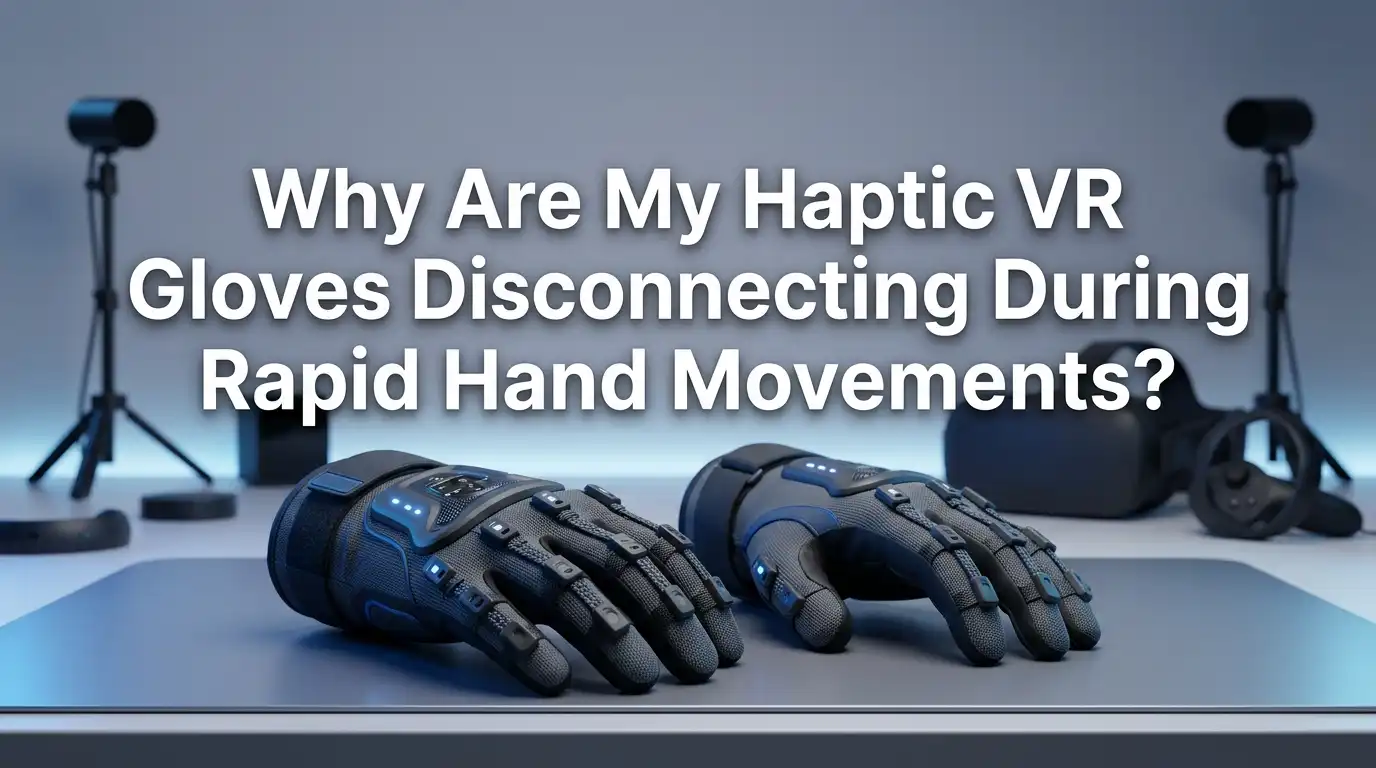
Why Are My Haptic VR Gloves Disconnecting During Rapid Hand Movements?
Your haptic VR gloves feel amazing until your hand moves fast. Then the connection drops. The feedback stops. Your virtual hand freezes or glitches. This problem ruins immersion in a split second.
You are not alone. Many VR users report this exact issue. Gloves work fine during slow gestures. But quick punches, swings, or grabs trigger sudden dropouts. The cause is rarely one single thing.
This guide explains why your gloves disconnect during rapid motion. It gives you clear, step by step fixes you can try today. Each section solves one part of the problem. By the end, you will know how to keep your gloves connected through fast action. Let’s get your hands back in the game.
Key Takeaways
- Wireless interference is the top cause. Most haptic gloves use the 2.4GHz band. Routers, microwaves, and other devices crowd this frequency. Switching channels or moving your router often fixes drops instantly.
- Loose straps break the signal path. When your glove shifts during fast movement, internal connectors and wires lose contact. A snug, correct fit keeps the data flowing.
- Weak battery power triggers shutdowns. Rapid haptic feedback drains power fast. Low voltage causes the glove to cut its connection to protect itself.
- Old firmware causes tracking failures. Manufacturers release updates that fix dropout bugs. Always run the latest firmware on both gloves and base hardware.
- IMU and sensor drift confuses the system. Fast motion overwhelms cheap sensors. Recalibration and a clean line of sight restore stable tracking.
- Distance and obstacles matter. Moving too far from your receiver or blocking sensors with your body breaks the link during big swings.
What Actually Happens When Gloves Disconnect During Fast Motion
Your gloves send a constant stream of data. This includes finger positions, hand rotation, and haptic commands. Each tiny movement creates new data packets. During slow motion, the system handles this stream with ease.
Rapid hand movement changes everything. Your hand generates far more data per second. The wireless link must work harder. If anything slows it down, packets get lost.
When too many packets drop in a row, the system thinks the glove is gone. It then cuts the connection. This is a safety and stability feature, not always a fault. Understanding this helps you target the right fix. The problem is usually one weak link in a chain. We will check each link, starting with the most common culprits.
Check for 2.4GHz Wireless Interference First
Most haptic gloves connect over the 2.4GHz band. This frequency is crowded. Your Wi Fi router, microwave, smart bulbs, and even your neighbor’s devices all use it. During fast motion, your gloves need a clean signal more than ever.
Interference causes packets to collide and drop. This is the single biggest reason for disconnects during rapid movement. Start your troubleshooting here.
Move your router at least three feet away from your play space. Turn off other 2.4GHz devices during play. Log into your router settings and switch the Wi Fi channel to 1, 6, or 11. These channels overlap the least.
Pros: This fix is free and often works in minutes. It targets the most common root cause.
Cons: You may need to restart your router. Some apartments have heavy interference you cannot fully remove. A 5GHz Wi Fi switch for your other devices helps clear the 2.4GHz lane.
Tighten and Adjust Your Glove Straps Correctly
A loose glove is a glove that disconnects. When you move your hand fast, a loose glove slides and shifts on your skin. This movement tugs on internal wires and connectors.
These tiny tugs break the data path for a fraction of a second. That fraction is enough to drop the link during a fast swing or punch.
Check every strap on your glove. Tighten the wrist strap until it feels snug but not painful. Make sure your fingers sit fully inside the finger sleeves. The sensors must stay flat against your hand.
Look for any pinched or bent cables near the joints. Reseat any removable connectors firmly.
Pros: A proper fit improves both connection and tracking accuracy. It costs nothing and takes one minute.
Cons: Very tight straps can reduce comfort over long sessions. People with smaller hands may need extra padding to get a stable fit. Always test your fit before a fast paced game.
Charge Your Batteries and Watch for Power Drops
Haptic feedback uses real power. Vibration motors and force feedback parts drain your battery quickly. During rapid motion, the gloves fire more haptic signals. This spikes power use.
When voltage drops too low, the glove protects itself. It cuts the wireless connection or shuts down a motor. This often looks like a random disconnect during your most active moments.
Charge your gloves fully before each session. If your gloves use replaceable batteries, use fresh high quality cells. Old or cheap batteries cannot deliver power fast enough during haptic spikes.
Watch the battery indicator. Disconnects that grow worse over a session point straight to power issues.
Pros: Full charges prevent many mid game drops. Fresh batteries also improve haptic strength.
Cons: Charging takes time and interrupts play. Replaceable cells add ongoing cost. Keep a second charged set ready so you never play on low power.
Update Your Glove Firmware and Companion App
Manufacturers fix bugs through firmware updates. Many early gloves shipped with dropout problems during fast motion. Later updates patched these exact issues.
Running old firmware means you live with bugs that already have a fix. This is one of the most overlooked solutions.
Open your glove’s companion app on your phone or computer. Look for a firmware or update section. Install any available update. Do this for the gloves, the receiver, and the app itself.
Keep your VR headset software current too. A mismatch between glove firmware and headset software can break the link.
Pros: Updates often fix dropouts permanently. They are free and improve other features too.
Cons: Updates take time and need a stable connection to install. Rarely, a new update introduces a fresh bug. If a new firmware causes problems, check the maker’s forum for a rollback option.
Recalibrate the IMU and Motion Sensors
Many gloves use IMU sensors to track hand and finger motion. These sensors drift over time and during fast movement. Cheap or uncalibrated sensors struggle to keep up with quick gestures.
When the data looks wrong, the system may reject it. This can trigger a disconnect or a tracking freeze that feels like a drop.
Run the calibration routine in your glove app. Hold your hand still, then follow the on screen poses. Recalibrate before every session for best results. Some gloves need a flat hand pose; others need a fist and a spread.
Keep your hand steady during the calibration steps. A rushed calibration leaves drift in the system.
Pros: Good calibration fixes both tracking glitches and false disconnects. It takes under a minute.
Cons: You must repeat it often. Sensors in budget gloves drift faster and need more frequent calibration. Calibrate in the same spot each time for consistent results.
Clear the Line of Sight Between Sensors and Gloves
Some haptic gloves rely on external tracking. This includes base stations, lighthouses, or headset cameras. These systems need to see your gloves to track them.
During a fast swing, your hand can move behind your back or below your waist. Your body then blocks the sensor. The system loses sight of the glove and the tracking drops.
Set up your tracking hardware at the right height. Place base stations above head level and angle them down. Use two or more sensors to cover more angles.
Clear the play space of furniture and reflective surfaces. Mirrors and shiny floors confuse optical tracking.
Pros: Better sensor placement fixes drops during big movements. It also boosts overall tracking quality.
Cons: Mounting hardware takes setup effort. Small rooms limit how far apart you can place sensors. A dedicated, clutter free play space gives the most reliable results.
Reduce the Distance to Your Receiver or Headset
Wireless signals weaken with distance. The farther your gloves sit from the receiver, the weaker the link. A weak link drops first under the heavy data load of fast motion.
Walls, doors, and even your own body absorb the signal. A glove that works fine in the center of the room may drop near the edges.
Stay within the recommended range of your receiver. For most gloves, this means staying within a few meters. Keep the receiver in open view, not hidden behind a monitor or shelf.
If you use a PC link, place the receiver dongle on a short USB extension raised off the desk. This lifts it above signal blocking clutter.
Pros: Better receiver placement is free and fast. It stabilizes the link across your whole play area.
Cons: USB extensions add a small cost. Very large play spaces may still hit range limits. Test your range by moving slowly to the edges before fast play.
Fix USB Port and Cable Problems
Wired gloves and wireless receivers both depend on a stable USB connection. A weak or faulty USB port causes random drops. This is easy to miss because the cause sits at your computer, not the glove.
USB ports share power and bandwidth. A crowded port cannot feed your receiver enough during data heavy fast motion.
Plug your receiver or glove cable directly into a rear USB port on your PC. Rear ports connect straight to the motherboard. Avoid front panel ports and unpowered hubs.
Try a USB 3.0 port for more bandwidth. If drops continue, swap the cable for a known good one. Damaged cables cause hidden connection faults.
Pros: Moving ports or swapping cables is quick and often free. It rules out a whole class of problems.
Cons: You may need to test several ports. A powered USB hub adds cost if you run low on ports. Label your best port so you always use it.
Lower Background System Load and Latency
Your computer juggles many tasks at once. Heavy background load slows the data your gloves depend on. When the system lags, glove packets get delayed and dropped during fast motion.
High latency turns a small hiccup into a full disconnect. This problem grows worse on older or busy machines.
Close every program you do not need before you play. Shut down web browsers, downloads, and chat apps. Open your task manager and end heavy background processes.
Set your VR software to high priority. Disable power saving modes that throttle your CPU and USB ports. A clean system gives your gloves the resources they need.
Pros: A lighter system improves all VR performance, not just gloves. Most of these changes are free.
Cons: You must repeat the cleanup before each session. Some background apps restart on their own. Create a simple pre play checklist to speed this up.
Manage Heat and Overheating Issues
Electronics misbehave when they get hot. Fast motion with constant haptic feedback makes gloves work hard and heat up. Warm components can throw errors and drop connections.
Overheating often appears later in a session. Your gloves work fine for the first half hour, then drops begin. This pattern points straight to heat.
Play in a cool, well ventilated room. Take short breaks during long, intense sessions. Let your gloves rest and cool between heavy games.
Do not leave gloves in direct sunlight or near heaters before use. Make sure no covers or wraps block their vents. A cool glove holds a steadier connection.
Pros: Cooling fixes late session drops at no cost. It also extends the life of your hardware.
Cons: Breaks interrupt your play flow. Hot climates make this harder to control. A small desk fan aimed at your play space helps a lot.
When to Contact Support or Replace Hardware
Sometimes the problem is the hardware itself. A faulty motor, a cracked board, or a dying battery causes drops no setting can fix. If you have tried every step above and still drop, suspect a defect.
Test your gloves on a different computer or headset. If the drops follow the gloves everywhere, the gloves are likely at fault.
Contact the manufacturer’s support team. Describe exactly when the drops happen and what you have tried. Many gloves carry a warranty that covers defects.
Keep your purchase records ready. Ask about repair, replacement, or known issues for your model.
Pros: Support can fix or replace truly faulty units. You avoid wasting hours on an unfixable problem.
Cons: Repairs take time and shipping. Out of warranty fixes cost money. Reach out early, since warranty windows do not last forever.
Build a Simple Pre Play Checklist to Prevent Drops
Prevention beats troubleshooting. A short routine before each session stops most disconnects before they start. Once you build the habit, it takes only a minute.
A checklist removes guesswork. You catch low batteries, loose straps, and clutter before they ruin your game.
Here is a simple routine to follow. Charge your gloves fully. Check and tighten all straps. Run a quick calibration. Confirm your firmware and app are current. Clear the play space of obstacles and reflective surfaces. Close heavy background programs. Place your receiver in open view.
Run through these steps every time. Consistency keeps your connection stable across every session.
Pros: A checklist prevents most drops before they happen. It saves time over fixing problems mid game.
Cons: It adds a small step to your routine. You may forget it at first. Pin the list near your play space until it becomes a habit.
Frequently Asked Questions
Why do my gloves only disconnect during fast movements and not slow ones?
Fast motion creates more data and uses more power than slow motion. This extra load exposes weak links like interference, loose fit, or low battery. Slow movement does not stress the system enough to reveal these faults.
Can my Wi Fi router really cause my haptic gloves to drop?
Yes. Most gloves use the crowded 2.4GHz band, the same band as many routers. The two compete for airspace. Switching your router channel or moving it away from your play space often stops the drops.
How often should I recalibrate my VR gloves?
Calibrate before every session for the most stable tracking. IMU sensors drift over time and with heavy use. Budget gloves drift faster, so they may need calibration even more often during long play.
Will a stronger battery fix my disconnection problem?
It can help if power is your issue. Fresh, high quality batteries deliver power fast enough during haptic spikes. If drops grow worse as your session continues, weak power is a likely cause.
Is it normal for haptic gloves to disconnect sometimes?
Occasional drops happen with most wireless gear. But frequent drops during fast motion point to a fixable problem. Work through interference, fit, power, and firmware before you assume your gloves are faulty.
Should I use a wired connection instead of wireless?
A wired link removes interference and range problems. It usually gives the most stable connection for fast motion. The trade off is reduced freedom of movement, so choose based on your play style and space.

Hi, I’m Jessamine Rowell, the founder and voice behind ResizeMake (https://resizemake.com/), a space where I share my love for technology with the world. I write detailed and honest reviews on the latest tech products, gadgets, electronic devices, and trending Amazon items to help readers make smarter buying decisions.