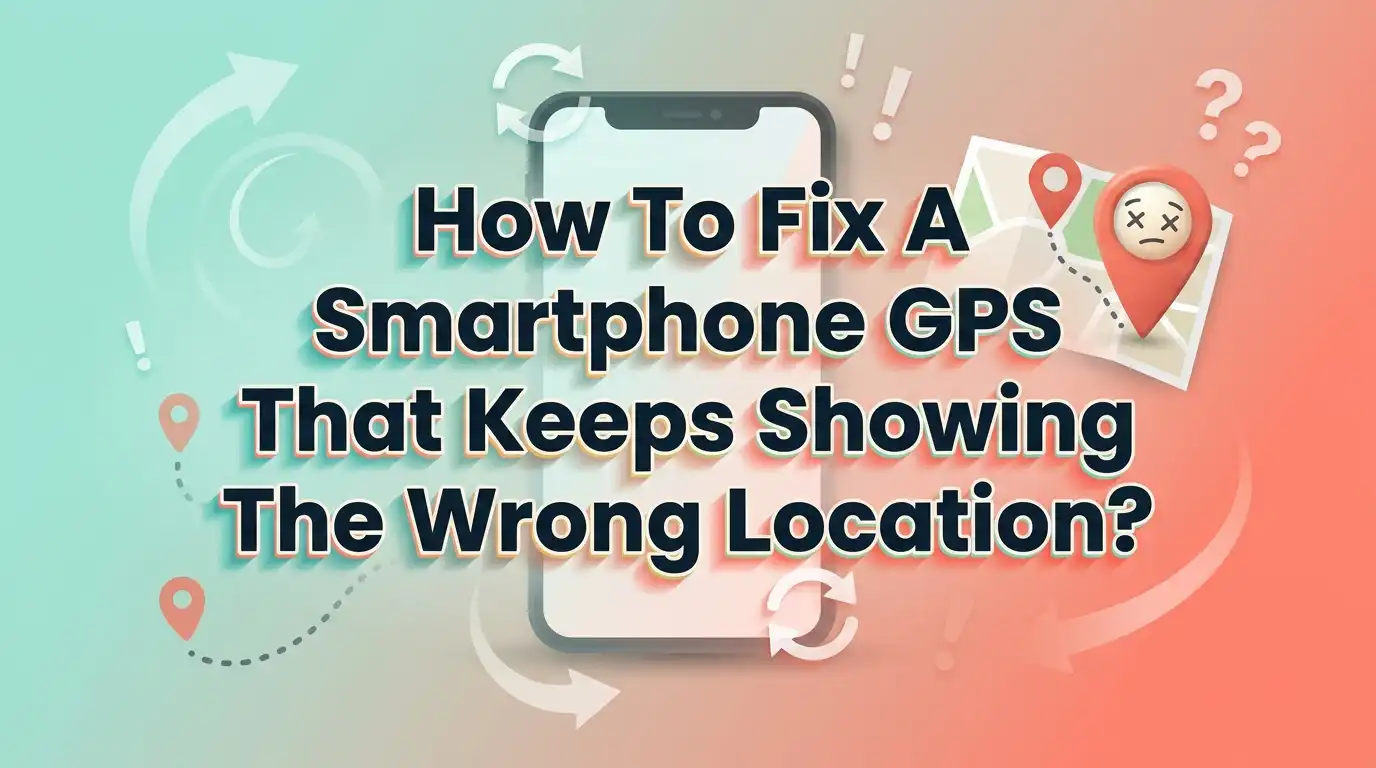
How To Fix A Smartphone GPS That Keeps Showing The Wrong Location?
Your phone says you are two streets away when you are standing right outside your house. Your ride share driver circles the wrong block. Your fitness app tracks a run that looks like a drunk spider drew it. A wrong GPS location is frustrating, and it makes everyday apps feel useless.
The good news is simple. Most GPS problems are fixable in a few minutes. You do not need a new phone. You do not need a technician. You just need the right steps in the right order.
This guide walks you through every fix that works, from quick toggles to deeper resets. Each section gives you clear steps, plus the pros and cons so you can pick what suits you. Let us get your blue dot back where it belongs.
In a Nutshell:
- Restart first, always. A simple reboot clears temporary software glitches and reconnects your phone to GPS satellites. It fixes wrong location problems more often than any other single step.
- Turn on High Accuracy mode. Your phone uses GPS, Wi-Fi, Bluetooth, and mobile networks together. This combined method is far more precise than GPS alone, especially indoors or in cities.
- Calibrate your compass. A wide or wrong pointing blue dot usually means your compass is off. The figure 8 motion fixes the direction in under a minute.
- Check what is blocking the signal. Buildings, tunnels, thick cases, and magnetic accessories all weaken GPS. Moving to open sky often solves the issue instantly.
- Clear app cache and reset settings. Old map data and corrupted network settings cause stubborn errors. A cache clear or network reset gives your phone a clean start.
- Watch for VPNs and fake location apps. A VPN changes your internet location, and a mock location app can override your real GPS. Turn these off when you need true positioning.
Why Your Smartphone GPS Shows The Wrong Location
Before you fix it, you should know why it breaks. Your phone does not only use satellites. It mixes GPS signals with Wi-Fi networks, Bluetooth beacons, and cell towers to guess your position. This mix is called assisted location.
When one source feeds bad data, your location drifts. A weak satellite lock pushes your phone to rely on cell towers, which can be off by hundreds of metres. Tall buildings bounce signals around, so the phone reads a reflection instead of a direct path.
Software causes problems too. Old map cache, wrong settings, a stuck compass, or a background app can all report a false spot. The point is clear. There is rarely one cause, so trying several fixes works better than one. Knowing this helps you stay calm and work through the list.
Restart Your Phone Before Anything Else
This sounds too basic, but it works more than you expect. A restart clears the temporary memory and forces your phone to search for satellites again. A fresh search often locks onto a strong signal that the old session missed.
Press and hold the power button. Choose restart or power off, then turn it back on. Wait a minute after it boots, then open your map app outdoors. Give the GPS thirty seconds to settle before you judge the result.
Pros: It takes under two minutes. It needs no settings knowledge. It fixes most minor glitches instantly.
Cons: It is a temporary fix if a deeper problem exists. You may need to repeat it if the real cause is a setting or a bad app. Still, this is always the smart first move before harder steps.
Turn On High Accuracy Or Precise Location Mode
Your phone has a location mode setting, and the wrong mode causes weak results. High Accuracy mode uses GPS, Wi-Fi, Bluetooth, and mobile data at the same time. This blend gives the tightest reading available.
On Android, open Settings, then Location, then tap Location Services or Mode, and turn on Improve Location Accuracy or Google Location Accuracy. On an iPhone, open Settings, tap Privacy and Security, then Location Services, and switch on Precise Location for the app you use.
A battery saving location mode trades accuracy for power, so it often shows you in the wrong place. Switch to the full mode when precision matters.
Pros: It greatly improves indoor and city accuracy. It is a permanent fix once set.
Cons: It uses more battery. It needs Wi-Fi and Bluetooth on to work at its best, which some people prefer to leave off.
Calibrate Your Phone Compass For The Right Direction
Sometimes your location is correct, but the blue dot points the wrong way. A wide beam or a wrong direction means your compass needs calibration. This fixes the heading, not the spot.
Open your map app. If the blue dot shows a wide light beam, your compass is off. Hold the phone flat and move it in a figure 8 motion several times in the air. Do this away from metal objects, magnets, and speakers for a clean result.
On iPhone, you can also enable Compass Calibration under Location Services and System Services, then open the Compass app and tilt the phone.
Pros: It is quick and needs no apps. It fixes the annoying wrong direction arrow in seconds.
Cons: It does not fix a wrong position, only the heading. Strong magnetic accessories near the phone can throw it off again, so you may repeat it.
Move To An Open Area With Clear Sky View
GPS satellites sit far above you, and their signals are weak by the time they reach the ground. Anything solid between you and the sky blocks or bends the signal. Walls, roofs, tunnels, and dense trees all hurt accuracy.
Step outside or move to a window. Walk away from tall buildings if you can. An open field or open road gives the cleanest lock, often within a few seconds.
Indoors, your phone leans on Wi-Fi and cell data, which guess your spot less precisely. That is why you appear in the next room or the next street.
Pros: It is free and instant. It often reveals that your phone was fine all along.
Cons: It is not always possible, since you cannot always go outside. Bad weather and dense city centres still cause some drift even outdoors.
Remove Thick Cases And Magnetic Accessories
Your phone case might be the hidden problem. A thick case, a metal plate, or a magnetic mount can interfere with the GPS antenna and the compass. Magnets are the bigger threat because they confuse the magnetic sensor.
Take off your case and test your location. Remove any magnetic car mount, popsocket plate, or wallet attachment near the phone. Magnetic clasps on flip cases are a common cause of a spinning or wrong direction dot.
If accuracy improves without the case, switch to a thinner case or one without metal and magnets.
Pros: It is easy to test and free. It permanently fixes compass problems caused by magnets.
Cons: You may need to buy a different case style. Some users dislike going without their preferred mount or wallet case.
Clear The Cache Of Your Map And Location Apps
Map apps store data to load faster, but this stored data can go stale. Old or corrupted cache makes an app show your last known spot instead of your live one. Clearing it forces a fresh start.
On Android, open Settings, tap Apps, choose your map app like Google Maps, tap Storage, then Clear Cache. Try the app again before you clear data, since clearing data signs you out and removes saved places.
On iPhone, you usually offload or reinstall the app, since there is no direct cache button. A clean reinstall removes the same stale data.
Pros: It fixes app specific bugs without touching the whole phone. It often cures a frozen blue dot.
Cons: Clearing data logs you out and erases offline maps. You will set up preferences again, which takes a little time.
Update Your Apps And Operating System
Outdated software carries bugs, and some bugs hurt location accuracy. Developers release updates that fix GPS errors and improve the location engine. Running old versions means you keep old problems.
On Android, open the Play Store, tap your profile, then Manage Apps, and update your map apps and Google Play Services. To update the system, open Settings, tap System, then Software Update. On iPhone, open Settings, tap General, then Software Update, and update your apps from the App Store.
Google Play Services controls location on Android, so keeping it current matters a lot.
Pros: It fixes known bugs and adds new accuracy features. It improves security at the same time.
Cons: Large updates take time and data. A rare buggy update can briefly cause new issues, though follow up patches usually fix them fast.
Reset GPS Data With A Status App Or Cold Start
Your phone caches satellite data called A-GPS to lock faster. When this data becomes stale, your phone keeps using wrong satellite positions. A reset clears it and downloads fresh data.
On Android, a free GPS status or GPS test app can reset and redownload A-GPS data with one tap. Clearing Google Play Services cache through Settings also refreshes location data. After resetting, stand outside so the phone can download new satellite info, known as a cold start.
iPhone does this automatically, so a restart and network reset cover the same ground.
Pros: It fixes a stuck or slow lock that other steps miss. It is a strong fix for long term drift.
Cons: It needs a third party app on Android, which some people avoid. The first lock after a reset is slower while new data downloads.
Turn Off VPN And Mock Location Settings
Two settings quietly fake your location, and people forget them. A VPN changes your internet location, which can confuse apps that read network data. A mock location app directly overrides your real GPS.
Turn off your VPN and test your map. If your spot corrects, the VPN was the cause for that app. Note that a VPN does not change true satellite GPS, but it does change Wi-Fi and IP based location.
On Android, open Developer Options and check that Select Mock Location App is set to none. A forgotten fake GPS app is a common reason for a wildly wrong position.
Pros: It removes a major hidden cause instantly. It is a free settings check.
Cons: You lose VPN privacy while it is off. Finding mock settings needs Developer Options, which feels technical for some users.
Check And Reset Your Date, Time, And Network Settings
GPS depends on precise timing, so a wrong clock breaks the math behind your position. An incorrect date or time stops your phone from matching satellite signals correctly. Setting time to automatic fixes this fast.
Open Settings, find Date and Time, and turn on Set Automatically. This syncs your clock with the network.
If problems continue, reset network settings. On Android, search for Reset in Settings, then choose Reset Wi-Fi, Mobile and Bluetooth. On iPhone, open General, then Transfer or Reset, then Reset, then Reset Network Settings. This clears bad network data that feeds wrong location guesses.
Pros: It fixes timing and network caused errors. Automatic time is a permanent set and forget fix.
Cons: A network reset erases saved Wi-Fi passwords. You will reconnect your networks again, which is a small chore.
Enable Wi-Fi And Bluetooth Scanning For Better Accuracy
Many people turn off Wi-Fi and Bluetooth to save battery, but this hurts location. Your phone uses nearby Wi-Fi networks and Bluetooth beacons to pinpoint you, especially indoors. Without them, accuracy drops.
On Android, open Settings, tap Location, then Location Services, and turn on Wi-Fi Scanning and Bluetooth Scanning. These let the phone scan for signals even when you are not connected to anything.
You do not need to join a Wi-Fi network for this to help. The phone just reads the networks around you to refine your spot.
Pros: It sharply improves indoor and city accuracy. It works alongside GPS for the best result.
Cons: It uses a little extra battery. Some users feel uneasy about constant scanning, though it is part of normal location service.
Check App Permissions And Background Location Access
An app cannot find you correctly if you blocked its location access. Wrong permissions make an app guess your spot from weak network data. Granting precise access fixes this.
On Android, open Settings, tap Apps, choose the app, tap Permissions, then Location, and select Allow While Using and turn on Use Precise Location. On iPhone, open Settings, tap the app, tap Location, choose While Using, and switch on Precise Location.
An app set to Approximate Location on purpose will always show a rough spot. Switch it to precise when you need accuracy.
Pros: It fixes per app errors without changing the whole phone. You keep control over which apps see your exact spot.
Cons: Precise access reduces privacy for that app. You must set it app by app, which takes a few minutes across many apps.
Factory Reset As A Last Resort
When nothing else works, a factory reset gives your phone a clean slate. This step removes deep software faults that block accurate location. It should be your final option, not your first.
First, back up your photos, contacts, and files to the cloud or a computer. Then open Settings, find Reset or Erase All Content and Settings, and follow the steps. Set the phone up fresh and test your location before adding many apps.
Only do this after you try every other fix above, since it erases everything on the device.
Pros: It clears stubborn software bugs that survive smaller fixes. It often restores like new performance.
Cons: It deletes all your data and apps. Setup takes time, and you must restore your backup carefully. If GPS still fails after this, the hardware may be the real issue.
When To Suspect A Hardware Problem
Sometimes the fault is physical, not software. If your GPS fails after every fix, including a factory reset, the antenna or sensor may be damaged. Drops, water, and old age all wear out parts.
Watch for signs. Your phone never gets a lock anywhere, even in open sky. The compass spins forever after many calibrations. Location worked fine until a drop or a soaking, then stopped.
Run a free GPS test app to see if the phone detects any satellites at all. If it sees none over time outdoors, that points to hardware.
Pros: A repair fixes the true root cause. A technician can confirm the part with a quick test.
Cons: Repairs cost money and time. Older phones may not be worth the repair cost, so weigh it against a replacement.
Frequently Asked Questions
Why does my GPS show the wrong location even outdoors?
Outdoor errors usually come from a stale satellite lock, a wrong location mode, or a bad compass. Restart your phone, turn on High Accuracy mode, and calibrate the compass. Tall buildings nearby can also bounce signals, so move to more open sky and wait thirty seconds.
Does a phone case really affect GPS accuracy?
Yes, it can. Thick cases and metal plates weaken the antenna signal a little. The bigger problem is magnets in flip cases and car mounts, since they confuse the compass and make your direction arrow wrong. Remove the case to test, then switch to a thinner, magnet free option if it helps.
How long does it take for GPS to fix itself after a reset?
After a restart or a GPS data reset, your phone needs time to find satellites. Stand outside with a clear sky view and wait thirty seconds to a few minutes. This first lock, called a cold start, is slower because the phone downloads fresh satellite data before it locks on.
Can a VPN change my GPS location?
A VPN changes your internet based location, not your true satellite GPS. Apps that read your network or IP address may show the VPN location instead of your real one. Turn off the VPN when you need a true position, and check that no fake GPS or mock location app is running on your phone.
Will turning on Wi-Fi improve my location accuracy?
Yes, it helps a lot, especially indoors. Your phone reads nearby Wi-Fi networks to pinpoint you more precisely than GPS alone can manage inside buildings. You do not need to connect to any network. Just enable Wi-Fi scanning in your location settings so the phone can use the signals around you.
What should I do if nothing fixes my GPS?
If every software fix fails, including a factory reset, suspect a hardware fault. A worn antenna or a damaged sensor from a drop or water can stop GPS for good. Run a GPS test app to check for satellites, and if it finds none outdoors, take the phone to a trusted repair service.

Hi, I’m Jessamine Rowell, the founder and voice behind ResizeMake (https://resizemake.com/), a space where I share my love for technology with the world. I write detailed and honest reviews on the latest tech products, gadgets, electronic devices, and trending Amazon items to help readers make smarter buying decisions.