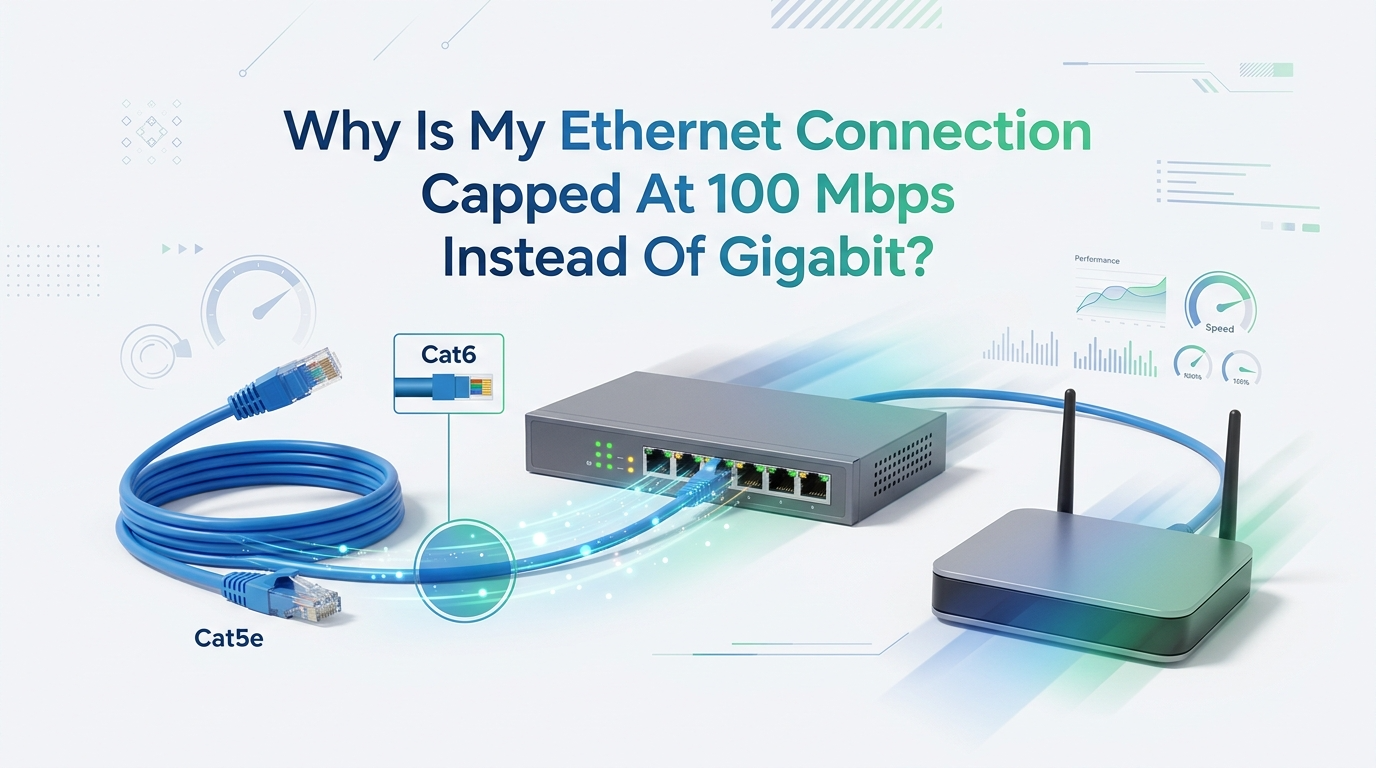
Why Is My Ethernet Connection Capped At 100 Mbps Instead Of Gigabit?
You plugged in your Ethernet cable. You expected fast speeds. Instead, your connection sits at 100 Mbps. Your router supports gigabit. Your PC supports gigabit. So why is the number stuck so low?
This problem frustrates many people every single day. The good news is simple. Most causes are easy to find and fix at home. You do not need to call a technician in most cases. You just need to check a few things in the right order.
This guide walks you through every common reason your Ethernet speed drops to 100 Mbps. You will learn how to test each part of your setup. You will also see the pros and cons of each fix.
In a Nutshell:
- A damaged or low grade cable is the top cause. Gigabit needs all four wire pairs working. If one pair breaks, the link drops to 100 Mbps automatically. Always test your cable first.
- Old cables limit speed. A true Cat5 cable only handles 100 Mbps. You need Cat5e or higher for gigabit. Many old cables look the same but perform very differently.
- Auto negotiation problems cause speed drops. Your device and router must agree on speed. A fixed or wrong setting can lock you at 100 Mbps even with good hardware.
- Not every router or switch port is gigabit. Some devices have mixed ports. One port gives gigabit. Another gives only 100 Mbps. Check the label before you blame the cable.
- Drivers and adapter settings matter. An old network driver or wrong duplex setting can hold your speed back. A quick update or reset often fixes this.
- Physical damage and dirt count too. A bent pin, a loose jack, or a crushed cable can all force the slower mode. Reseat and inspect every connection.
How To Confirm Your Speed Is Actually Capped At 100 Mbps
Before you fix anything, you must confirm the real link speed. Many people confuse internet speed with link speed. These are two different numbers. Your link speed is the connection between your device and your router. Your internet speed is what your provider delivers.
On Windows, open Settings, then Network and Internet. Click your Ethernet connection. Look for the Link speed value. It will show 100/100 Mbps or 1000/1000 Mbps. On a Mac, open System Settings, then Network, then check the Ethernet details.
If the value reads 100 Mbps, your link is truly capped. This rules out your internet plan as the cause. Now you can focus on the cable, ports, and settings with confidence. This first step saves you hours of guessing.
Why Your Ethernet Cable Is The Most Likely Culprit
Your cable is the number one reason for a 100 Mbps cap. Here is the simple science. 100 Mbps Ethernet uses only two wire pairs. Gigabit Ethernet needs all four pairs. If even one pair breaks, the connection falls back to 100 Mbps to stay stable.
Cables get damaged in many ways. You roll an office chair over them. You shut a door on them. You bend them too sharply behind furniture. Any of these can break a single tiny wire inside. The cable still works, but only at the slower speed.
This is why a cable that worked yesterday can slow down today. The damage is often invisible from the outside. The jacket looks fine while a wire inside is broken.
Pros of checking the cable first: It is free, fast, and solves most cases.
Cons: You may need a spare cable to confirm the problem.
How To Test And Swap Your Ethernet Cable
Testing your cable is the fastest fix you can try. Grab a different cable that you know works at gigabit speed. Plug it into the same ports. Check your link speed again. If the speed jumps to 1000 Mbps, your old cable was the problem.
Try to use a short cable for the test. A short run removes length as a factor. Keep the cable away from power cords and large appliances. These create interference that can hurt performance on longer runs.
If you crimped your own connectors, recheck the wiring. All eight pins must connect in the correct order. A single misplaced wire breaks gigabit but still allows 100 Mbps. This catches many people who make their own cables at home.
Pros of swapping cables: Instant proof of where the fault lies.
Cons: You need a known good spare cable on hand to test properly.
Understanding Cable Categories: Cat5, Cat5e, Cat6 And Beyond
Cable type matters more than most people think. A true Cat5 cable only supports 100 Mbps. It was never built for gigabit speeds. If your home still has old Cat5 cabling, that alone explains your cap.
You need Cat5e or higher for gigabit. Cat5e handles 1000 Mbps over the standard 100 meter run. Cat6 handles gigabit easily and supports faster speeds over short distances. Cat6a and Cat7 add even more headroom for future needs.
Check the text printed on the cable jacket. It usually says Cat5, Cat5e, Cat6, or similar. If you see only Cat5 with no “e”, that cable cannot do gigabit. Replace it with Cat5e or Cat6 to unlock full speed.
Pros of upgrading cable category: Reliable gigabit and room to grow.
Cons: You must buy new cable and possibly rerun it through walls.
Why Cable Length And Routing Affect Your Speed
Distance plays a real role in Ethernet performance. The standard limit for a single Ethernet run is 100 meters, or about 328 feet. Push past that and signals weaken. Your link may drop to 100 Mbps or fail completely.
Most home setups stay well under this limit. Still, very long runs through walls and ceilings add up fast. A 90 meter run plus extra slack can edge close to the danger zone. Lower quality cable struggles even more at these lengths.
Routing matters too. Tight bends, kinks, and staples that pinch the jacket all cause trouble. Run your cable in gentle curves and avoid crushing it. Keep it clear of fluorescent lights and motors. These small habits protect your gigabit speed over the full length of the run.
How Auto Negotiation Problems Lock You At 100 Mbps
Auto negotiation lets two devices agree on the best shared speed. Your network card and your router talk to each other and pick the fastest mode both support. When this process fails, the link often defaults to a safe 100 Mbps.
Problems happen when someone sets a fixed speed on one side. Imagine your PC is set to Auto but the router port is locked to 100 Mbps. The two cannot match perfectly, so they fall back to the slower speed. A duplex mismatch creates the same result.
The fix is usually simple. Set both ends to Auto Negotiation. This lets them sort out the correct speed on their own. Only force a fixed speed if you have a specific reason and know both ends match exactly.
Pros of using Auto: It works for almost every modern device.
Cons: Rare older hardware may need manual settings to behave.
Checking Your Network Adapter Speed And Duplex Settings
Your network adapter has settings that can cap your speed. Open Device Manager on Windows. Expand Network adapters. Right click your Ethernet adapter and choose Properties. Click the Advanced tab.
Look for an option called Speed and Duplex or Link Speed. You may see it set to “100 Mbps Full Duplex” by accident. Change it to Auto Negotiation or “1.0 Gbps Full Duplex”. Click OK and check your link speed again.
This setting sometimes changes after a Windows update or a driver glitch. Setting it back to Auto solves the problem in many cases. It costs you nothing and takes under a minute to try.
Pros of adjusting this setting: Quick, free, and reversible.
Cons: Wrong manual values can break the link, so prefer Auto.
Updating Or Reinstalling Your Network Driver
An old or broken driver can hold your speed at 100 Mbps. The driver is the software that controls your network card. When it gets corrupted, your gigabit hardware may report the wrong speed.
Start with an update. Open Device Manager, right click your Ethernet adapter, and choose Update driver. Let Windows search automatically. For best results, download the latest driver straight from your motherboard or adapter maker’s website.
If updating does not help, reinstall the driver. Right click the adapter, choose Uninstall device, then restart your PC. Windows reinstalls a fresh copy on reboot. This clears out any corrupted settings that limited your speed.
Pros of driver fixes: They solve software based caps cleanly.
Cons: You may need internet on another device to download the right driver first.
Why Your Router Or Switch Port May Be The Problem
Not every port on your network gear is gigabit. Some routers and switches mix port speeds. One row gives full gigabit. Another row gives only 100 Mbps. You might be plugged into the slow one without knowing.
Check the labels next to each port. Many devices print “1000” or “Gigabit” near the fast ports. Older or budget routers may have all 100 Mbps ports, which caps every wired device no matter what cable you use.
Try a different port on the same device. If your speed jumps to 1000 Mbps on another port, the first port was the limit. Cheap unmanaged switches are common hidden culprits in home networks.
Pros of port testing: It quickly reveals weak gear.
Cons: You may need to replace an old switch or router for full speed.
How To Spot Damaged Ports, Pins And Connectors
Physical damage is easy to miss but simple to check. Look closely at the RJ45 jack on both your device and your router. Use a flashlight. You should see eight small gold pins lined up evenly inside.
A bent, pushed back, or dirty pin can break a wire pair. That single fault drops your link to 100 Mbps. Dust and debris inside the jack cause the same trouble. Blow out the port gently with clean air if you see buildup.
Check the connector on your cable too. The little plastic clip should hold firm. A loose plug that wiggles in the port creates an unstable link. Reseat the cable until you hear a solid click. A snug fit often restores full gigabit speed right away.
Testing With A Different Device To Find The Weak Link
Sometimes you need to isolate the fault. Plug a second device into the same cable and port. Use a laptop, a console, or another PC. Check its link speed in the same way.
If the second device hits 1000 Mbps, your first device is the problem. The fault lies in its adapter, driver, or settings. If the second device also caps at 100 Mbps, the cable, port, or router is to blame. This simple swap narrows your search fast.
This method removes guesswork. You test one part at a time until the slow link reveals itself. Change one thing per test so you always know what caused the result.
Pros of device testing: It pinpoints the exact faulty part.
Cons: You need a spare gigabit capable device to compare against.
When To Replace Hardware For Reliable Gigabit Speed
Sometimes the fix means new hardware. If your router only has 100 Mbps ports, no cable or setting will give you gigabit. The hardware simply cannot go faster. The same is true for very old network cards.
Add a gigabit switch if your router lacks fast ports. A small gigabit switch plugs into your router and gives you several fast wired ports. This is a cheap upgrade that solves the cap for multiple devices at once.
For an old PC, a new gigabit network card or a USB to Ethernet adapter restores full speed. Pick hardware that clearly states gigabit or 1000 Mbps support. Check that your motherboard and operating system support the new card before you buy.
Pros of new hardware: A permanent fix with future headroom.
Cons: It costs money and may need driver setup afterward.
Final Steps And Habits To Keep Gigabit Speeds Stable
Once you reach gigabit, a few habits keep it that way. Route your cables gently and avoid sharp bends. Keep them away from power lines and heat sources. These steps protect the wire pairs that gigabit depends on.
Label your gigabit ports and cables. This stops you from plugging into a slow port by mistake later. Keep one tested gigabit cable spare in a drawer for quick troubleshooting.
Update your drivers a couple of times a year. Set your adapter and router to Auto Negotiation and leave them there. Check your link speed after any major update. A quick glance catches problems early. With these small habits, your wired connection stays fast and steady for years.
Frequently Asked Questions
Why does my Ethernet show 100 Mbps even with a Cat6 cable?
A Cat6 cable can still cause a 100 Mbps cap if it is damaged or wired wrong. A broken wire pair forces the slower mode. A bad connector, a bent pin, or a fake low quality cable all create this. Test with a known good cable to confirm.
Can a bad Ethernet cable really limit speed to exactly 100 Mbps?
Yes. Gigabit needs all four wire pairs working. 100 Mbps needs only two. When one pair fails, the link drops cleanly to 100 Mbps and stays stable there. This is why a damaged cable so often lands on this exact number.
How do I check my Ethernet link speed on Windows?
Open Settings, then Network and Internet. Click your Ethernet connection and find the Link speed value. It shows 100 Mbps or 1000 Mbps. You can also check the Status window of your adapter in the Control Panel for the same number.
Does cable length cause my speed to drop to 100 Mbps?
It can on very long runs. The standard limit is 100 meters per run. Past that, signals weaken and speed falls. Most home setups stay well under this, so length is rarely the cause unless your run is very long or uses low quality cable.
Will updating my network driver fix the 100 Mbps cap?
Often, yes. A corrupted or outdated driver can report the wrong speed. Update it through Device Manager or download the latest version from your adapter maker. If updating fails, uninstall the driver and restart your PC to install a fresh copy.
Why is only one of my devices stuck at 100 Mbps?
This points to that single device. Its adapter, driver, or speed setting is likely the cause. Plug another device into the same cable and port. If the second device hits gigabit, you have confirmed the first device holds the fault.

Hi, I’m Jessamine Rowell, the founder and voice behind ResizeMake (https://resizemake.com/), a space where I share my love for technology with the world. I write detailed and honest reviews on the latest tech products, gadgets, electronic devices, and trending Amazon items to help readers make smarter buying decisions.