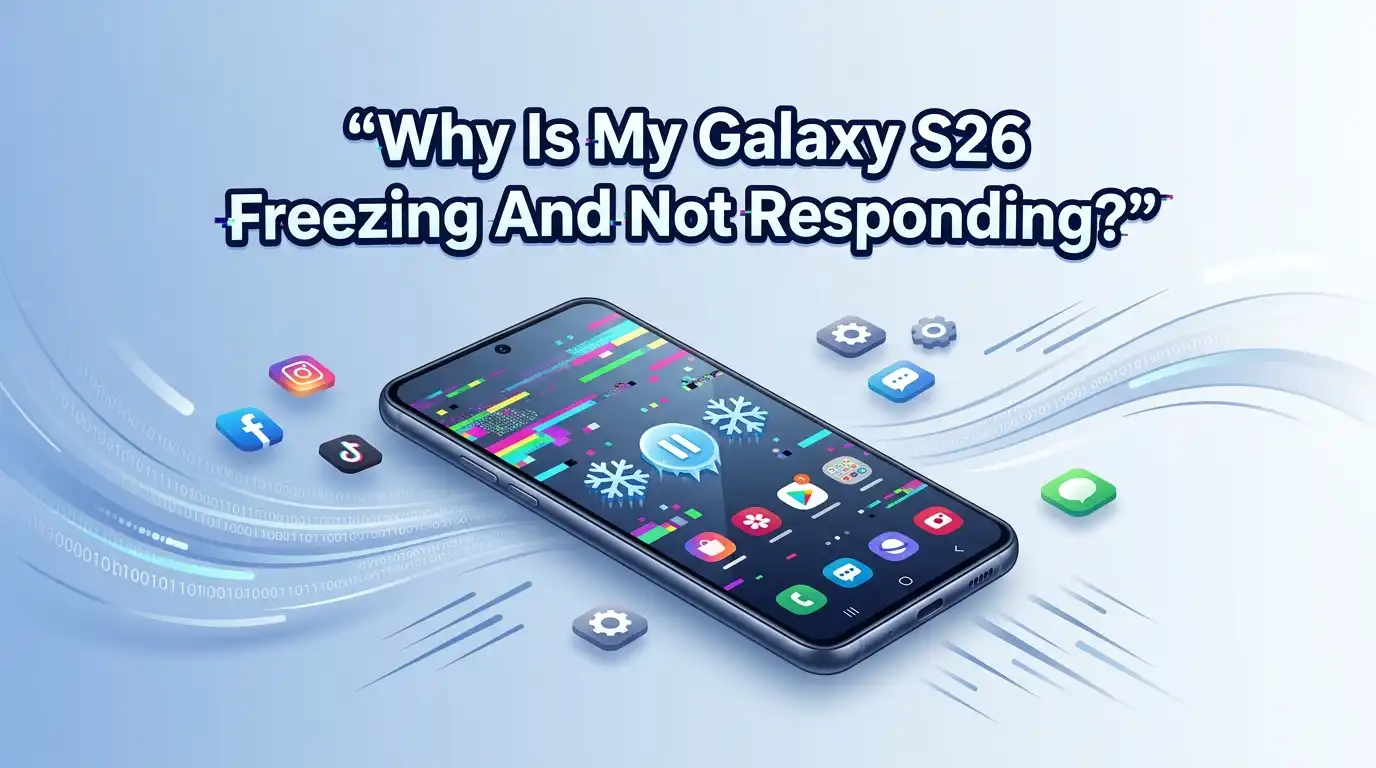
Why Is My Galaxy S26 Freezing And Not Responding?
Your Galaxy S26 is fast, powerful, and packed with smart features. So it feels frustrating when the screen suddenly locks up and stops responding to your taps.
You press the display, and nothing moves. Apps stall. The whole phone acts stuck. If this sounds familiar, take a deep breath. You are not alone, and this problem is usually fixable at home.
This guide walks you through every reason your phone freezes and gives you clear, step by step fixes. You will learn quick tricks and deeper repairs, along with the pros and cons of each method. Let us get your S26 running smoothly again.
Key Takeaways
- A force restart fixes most freezes. Hold the Volume Down and Side button together for 7 to 10 seconds. This clears the temporary glitch and reboots your phone without deleting data.
- Low storage and heavy apps are common culprits. When your S26 runs low on free space or juggles too many apps, it slows down and freezes. Free up space and close background apps.
- Heat makes your phone freeze. Overheating forces the S26 to throttle its speed. Remove the case, cool the phone, and avoid using it while charging.
- A single bad app is often the root cause. Booting into Safe Mode helps you spot the problem app. Once found, update or uninstall it.
- Software updates carry important bug fixes. Samsung releases regular One UI patches. Keeping your S26 updated prevents many freezing issues.
- A factory reset is the last resort. It clears deep software problems but erases your data. Always back up first.
Understanding Why Your Galaxy S26 Freezes
Your Galaxy S26 runs thousands of tiny processes at once. When one process stalls or clashes with another, the screen freezes. This is a software traffic jam, not a broken phone.
The most common triggers include full storage, too many open apps, a buggy app update, an overheated processor, or a pending software update that never finished.
Sometimes a corrupt file or a memory glitch causes the freeze. Other times, a screen protector or dirty display blocks your touches. Knowing the cause helps you pick the right fix fast.
In the sections below, we start with the quickest solutions and move toward deeper repairs. Try each fix in order. You will likely solve the problem before reaching the bottom of this list.
Force Restart Your Frozen Galaxy S26
A force restart is your first and fastest move. It shuts down the frozen system and boots it fresh, clearing the glitch behind the freeze. This method does not delete any of your photos, apps, or files.
To force restart your S26, press and hold the Volume Down button and the Side button together. Keep holding for 7 to 10 seconds. The screen goes black, and the Samsung logo appears. Release the buttons and let the phone boot up. Your S26 should now respond to touch again.
Pros: It is quick, safe, and works for most freezes. You lose no data.
Cons: It is a temporary fix. If a deeper problem exists, the freeze may return. A force restart treats the symptom, not always the cause. Still, it is the perfect first step every time your phone locks up.
Clean Your Screen And Remove Accessories
Sometimes your Galaxy S26 is not truly frozen. The touchscreen simply cannot read your taps. A cheap or poorly fitted screen protector blocks touch signals. So do dirt, water droplets, and oily fingerprints on the glass.
Start by wiping the screen with a soft, dry cloth. Remove any gloves. Make sure your fingers are clean and dry, since very dry or chapped skin can fail to register touches. Next, take off any non Samsung certified screen protector or thick case. Test the screen again with a bare display.
Pros: This fix is free, instant, and solves touch problems many people never suspect.
Cons: It only helps when accessories or dirt cause the issue. If your phone freezes with a clean, bare screen, the cause lies elsewhere. Still, this quick check saves you from bigger, needless repairs.
Free Up Storage Space On Your Device
A full storage drive is a top reason phones freeze. Your Galaxy S26 needs free space to run smoothly. When storage fills up, the system struggles to load apps and manage memory. The result is a slow, freezing phone.
Open Settings, then tap Battery and device care, and choose Storage. Check how much space is left. If you have less than 10 percent free, it is time to clean up. Delete old photos, videos, and downloads. Uninstall apps you never use. Move large files to Samsung Cloud or a computer.
Pros: Freeing space boosts overall speed, not just freezing. It costs nothing and keeps your phone healthy long term.
Cons: You must decide what to delete, which takes a little time. Deleting the wrong file can lose a memory, so back up first. This fix works best as regular maintenance.
Close Background Apps And Clear RAM
Your Galaxy S26 holds many apps open in the background. Each one uses a slice of memory, called RAM. When too many apps run at once, the RAM fills up, and your phone freezes as it fights for resources.
Tap the Recent apps button, the vertical lines at the bottom of your screen. Swipe up on each app card to close it. Or tap Close all to shut them all at once. You can also open Settings, tap Battery and device care, and hit Optimize now. This clears memory and closes idle apps in one tap.
Pros: This frees up RAM instantly and often stops freezing right away. It is simple and safe.
Cons: Closed apps take a moment to reload next time you open them. Heavy multitaskers may need to repeat this often. Making Optimize now a daily habit keeps your S26 quick and responsive.
Update All Your Apps To The Latest Version
Outdated apps are a hidden cause of freezing. A single old app can clash with your current One UI version and lock up the whole phone. App developers release updates to fix these exact bugs.
Open the Google Play Store. Tap your profile icon in the top corner. Choose Manage apps and device. If updates are waiting, tap Update all. Let each app finish downloading and installing. Also check the Galaxy Store for updates to Samsung apps.
Pros: Updates fix known bugs, add features, and improve stability. They often stop freezing tied to one problem app.
Cons: Updates use data and storage, so use Wi Fi when possible. Rarely, a new update itself brings a bug. If a freeze starts right after one app update, that app is likely the cause, and you may need to roll it back or report it.
Check For And Install Software Updates
Samsung pushes regular One UI updates to your Galaxy S26. These updates carry important bug fixes and performance patches. If your phone freezes often, a pending update may hold the exact fix you need. Running old software invites more glitches over time.
Open Settings, scroll down, and tap Software update. Tap Download and install. If an update appears, follow the on screen steps and let your phone restart. Keep it charged and connected to Wi Fi during the process.
Pros: Updates solve system wide freezing caused by known bugs. They also improve security and battery life at the same time.
Cons: Some updates are large and take time to install. In rare cases, a fresh One UI version introduces new minor bugs. If a freeze begins right after a big update, Samsung usually releases a follow up patch quickly, so keep checking for the next update.
Cool Down Your Overheating Galaxy S26
Heat and freezing go hand in hand. When your Galaxy S26 gets too hot, it slows its own processor to protect itself. This throttling makes the phone lag, stutter, and freeze. Gaming, video recording, and charging all build up heat fast.
If your phone feels warm, stop using it for a few minutes. Remove the case to let heat escape. Move it out of direct sunlight and away from hot surfaces. Never put your phone in the freezer, since sudden cold causes damage. Let it cool naturally.
Pros: Cooling is free and often fixes freezing during heavy use. It also protects your battery health over time.
Cons: You must pause what you were doing, which is inconvenient mid game or mid call. Frequent overheating may point to a demanding app or a battery issue that needs deeper attention, covered in the sections below.
Boot Into Safe Mode To Find The Problem App
Safe Mode is a smart way to test your phone. It starts your Galaxy S26 with only the built in apps running. Your downloaded apps stay off. If the freezing stops in Safe Mode, you know a third party app is the true cause.
Press and hold the Side button until the power menu appears. Touch and hold Power off until the Safe mode icon shows. Tap it. Your phone reboots into Safe Mode, shown at the bottom of the screen. Use the phone normally and watch for freezing.
Pros: This method pinpoints whether an app or the system causes the problem. It saves you from guessing.
Cons: Safe Mode itself is not a fix, only a test. You cannot use your downloaded apps while in it. To exit, simply restart your phone. Once you find the guilty app, uninstall or update it in normal mode.
Uninstall Or Reset Problem Apps
Once Safe Mode reveals that an app causes the freeze, it is time to act. The most recently installed or updated apps are the usual suspects. Think about which app you added just before the trouble began.
To clear an app’s data, open Settings, tap Apps, and select the problem app. Tap Storage, then choose Clear cache first. If freezing continues, tap Clear data. Clearing data resets the app like new, so you may lose in app settings. If nothing helps, tap Uninstall to remove it fully.
Pros: This targets the exact cause of your freezing. Clearing cache is safe and keeps your account details intact.
Cons: Clearing data logs you out and wipes app settings. Uninstalling removes the app completely. You may lose local data not backed up, so save anything important before you clear or remove an app.
Turn On Touch Sensitivity Settings
Your Galaxy S26 has a hidden setting that boosts screen response. It is called Touch sensitivity. When on, the screen reads your taps more easily, even through a screen protector. This helps if your phone seems frozen but is really just slow to feel your touch.
Open Settings and tap Display. Scroll down and find Touch sensitivity. Toggle the switch on. Try your screen again and see if it responds faster. This setting is built for people who use screen protectors on their display.
Pros: It improves touch response instantly and works well with protectors. The change is simple and reversible.
Cons: It gives only a small boost, so it will not fix a true software freeze. On a bare screen, you may notice little difference. Still, it is a smart setting to enable if your touches sometimes go unnoticed.
Perform A Factory Reset As A Last Resort
If nothing above works, a factory reset is your final option. It wipes your Galaxy S26 clean and restores the original software. This removes deep bugs and corrupt files that cause stubborn freezing. But it also erases everything on your phone.
First, back up your data. Open Settings, tap Accounts and backup, and use Samsung Cloud or Google backup. Then go to Settings, tap General management, choose Reset, and select Factory data reset. Follow the prompts and let the phone restart fresh.
Pros: A reset clears almost every software cause of freezing. Your phone runs like the day you bought it.
Cons: You lose all apps, photos, and settings not backed up. Setting up your phone again takes time. When adding apps back, install them one by one, so you can spot any app that brings the freeze back.
When To Seek Professional Repair Help
Sometimes freezing points to a hardware fault, not software. If your Galaxy S26 still freezes after a factory reset, the problem may be physical. A failing battery, water damage, or a loose internal part can all cause freezing that software fixes cannot solve.
Look for warning signs. A swollen back, rapid battery drain, freezing right after a drop, or freezing during charging all suggest hardware trouble. In these cases, home fixes will not help. Contact Samsung support or visit an authorized service center. If your phone is under warranty, repair may be free.
Pros: A trained technician finds hardware faults you cannot see. Genuine parts keep your phone safe and reliable.
Cons: Repairs cost money if you are out of warranty. You may be without your phone for a few days. Still, professional help is the right call when a real hardware issue causes the freeze.
Frequently Asked Questions
Why does my Galaxy S26 freeze when I open certain apps?
A single app often causes freezing when it clashes with your software or runs out of memory. Update the app first, then clear its cache. If the freezing continues, uninstall the app and check if the problem stops. Booting into Safe Mode helps you confirm the app is the true cause.
Will a force restart delete my data?
No. A force restart only reboots your phone and clears the temporary glitch. Your photos, apps, files, and settings all stay safe. It is the safest first fix you can try. Only a factory reset erases your data, so a force restart carries zero risk to your personal content.
How often should I restart my Galaxy S26 to prevent freezing?
Restarting your phone once or twice a week keeps it running smoothly. A regular restart clears memory and closes stuck processes. You can also set an automatic restart in Settings under Battery and device care. This simple habit prevents many small glitches before they grow into freezes.
Can a full storage really cause my phone to freeze?
Yes. When your Galaxy S26 runs low on free space, the system struggles to manage memory and load apps. Keep at least 10 percent of your storage free. Delete old files, clear app caches, and move photos to the cloud. Freeing space often stops freezing and speeds up your whole phone.
Is it safe to update One UI if my phone keeps freezing?
Yes, updating is usually safe and smart. Samsung updates carry bug fixes that stop freezing. Keep your phone charged and on Wi Fi during the update. Back up your data first as a precaution. If a freeze started right after an update, wait for Samsung’s next patch, which often fixes the new issue quickly.
What should I do if my screen is completely black and frozen?
Try a force restart by holding the Volume Down and Side button for 7 to 10 seconds. If nothing happens, plug your phone into a charger and wait a few minutes, then try again. A dead battery can mimic a freeze. If the screen stays black after charging, contact Samsung support.
Final Thoughts
A freezing Galaxy S26 is annoying, but it rarely means your phone is broken. Most freezes come from software, storage, heat, or a single bad app. Start with a force restart, then work your way down this list. Each fix targets a different cause, so you will likely solve the problem quickly.
Keep your phone updated, free up storage often, and close background apps to prevent future freezes. Save the factory reset for last, and back up your data before you do it.
If freezing continues after every fix, a hardware issue may be to blame, and professional repair is the right step. With these solutions, your S26 will feel fast and responsive again.

Hi, I’m Jessamine Rowell, the founder and voice behind ResizeMake (https://resizemake.com/), a space where I share my love for technology with the world. I write detailed and honest reviews on the latest tech products, gadgets, electronic devices, and trending Amazon items to help readers make smarter buying decisions.